Social Media Client Portal Guide for Notion
social media client portal: See the pages, approval stages, and Notion setup steps that help clients review one post at a time without scattered feedback.
By Notion SMM Portal by Cosmo Suite · Editorial policy
Published · 10 min read
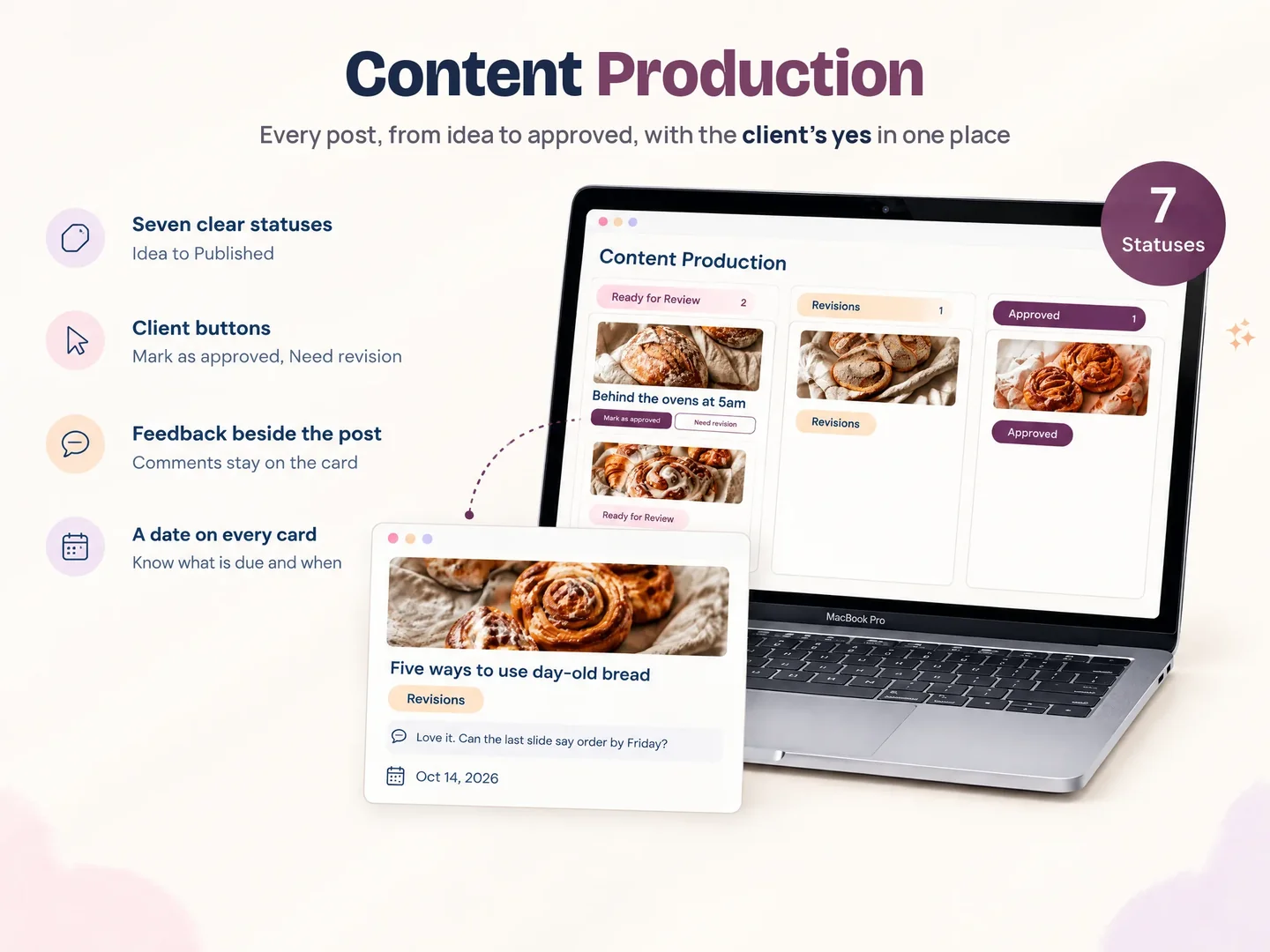
If you manage social media for clients, the work rarely sits in one place. A caption is in a document, the image is in a folder, the client replies in WhatsApp, and the final approval is buried in email. Then someone asks, “Can you change the second one?” and you have to work out which post they mean.
A social media client portal gives each client a shared place to see the plan, review each post, and find the files and decisions tied to that work. Use one item per post, show its status, and keep feedback beside the asset it refers to. Here is what to include and how to build a version in Notion.
What Is a Social Media Client Portal?
A social media client portal is a shared workspace for the client-facing parts of social media management. It can hold the content calendar, post drafts, assets, review notes, approval status, and reports for one account. The client should be able to find the current item without searching through old messages.
The term describes the workspace, not one specific app. A scheduler may provide a client approval view. A project tool may hold tasks and files. A Notion setup can connect pages and databases. Each option has different publishing, access, and collaboration features, so decide which job you need the portal to handle.
Start by mapping the workflow, then choose the tool. Hootsuite describes a typical approval path as ideation, drafting, review, revision, approval, then scheduling or publishing. You can use the same sequence with a shared content board, provided each post has an owner and a clear next step. Hootsuite’s approval workflow guide explains the stages and common points where the process breaks down.
Social Media Client Portal at a Glance
Start with a client home page and a content list where every post has its own review record. Add the supporting pages that your service actually uses.
| Portal area | What goes there | Client question it answers |
|---|---|---|
| Client home | Links to the active work and agreed process | Where do I start? |
| Content calendar | Post date, platform, caption, asset, status | What is planned and when? |
| Review record | One post with feedback and an approval decision | Which post needs my attention? |
| Resources | Brand files, references, and supplied materials | Where is the right file? |
| Reports | Monthly summary, results, and next steps | What happened this month? |
| Meeting and task pages | Decisions, follow-ups, and owners | Who is doing what next? |
You do not need to build all six areas on day one. A solo manager can begin with the calendar, review record, and resources. Add the rest when your service needs them. A portal with many pages is still hard to use if the client cannot tell what to open first.
What Should a Social Media Client Portal Include?
Include the pages that help a client understand the work, review a post, and find the latest decision. A practical first version has five parts: client details, content plan, post review, shared resources, and reporting.
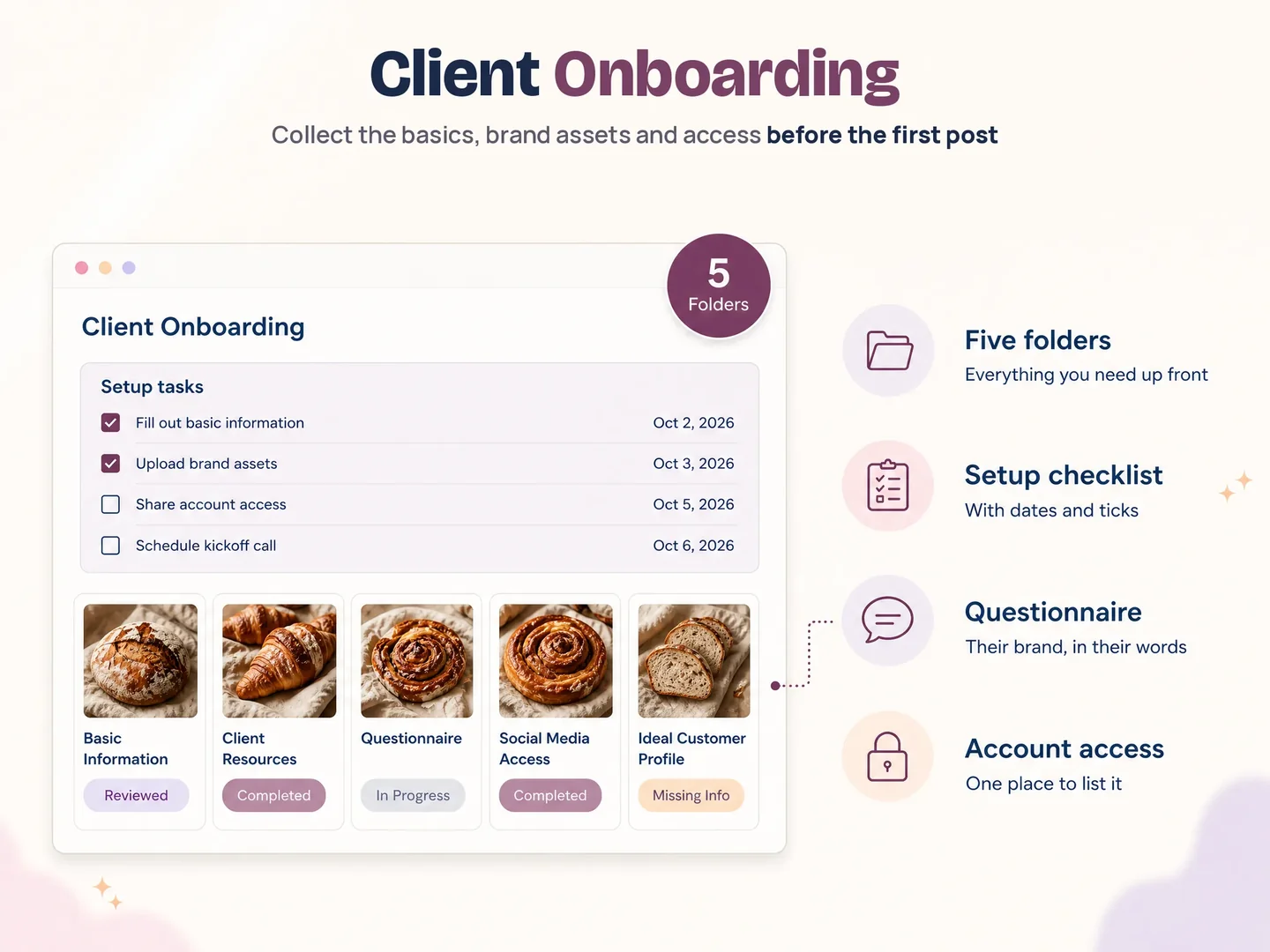
Client details. Record the client’s goals, platforms, audience notes, brand guidance, service scope, and key contacts. Keep this as the reference for the work. Confirm the client’s platform access separately and use each platform’s own access process.
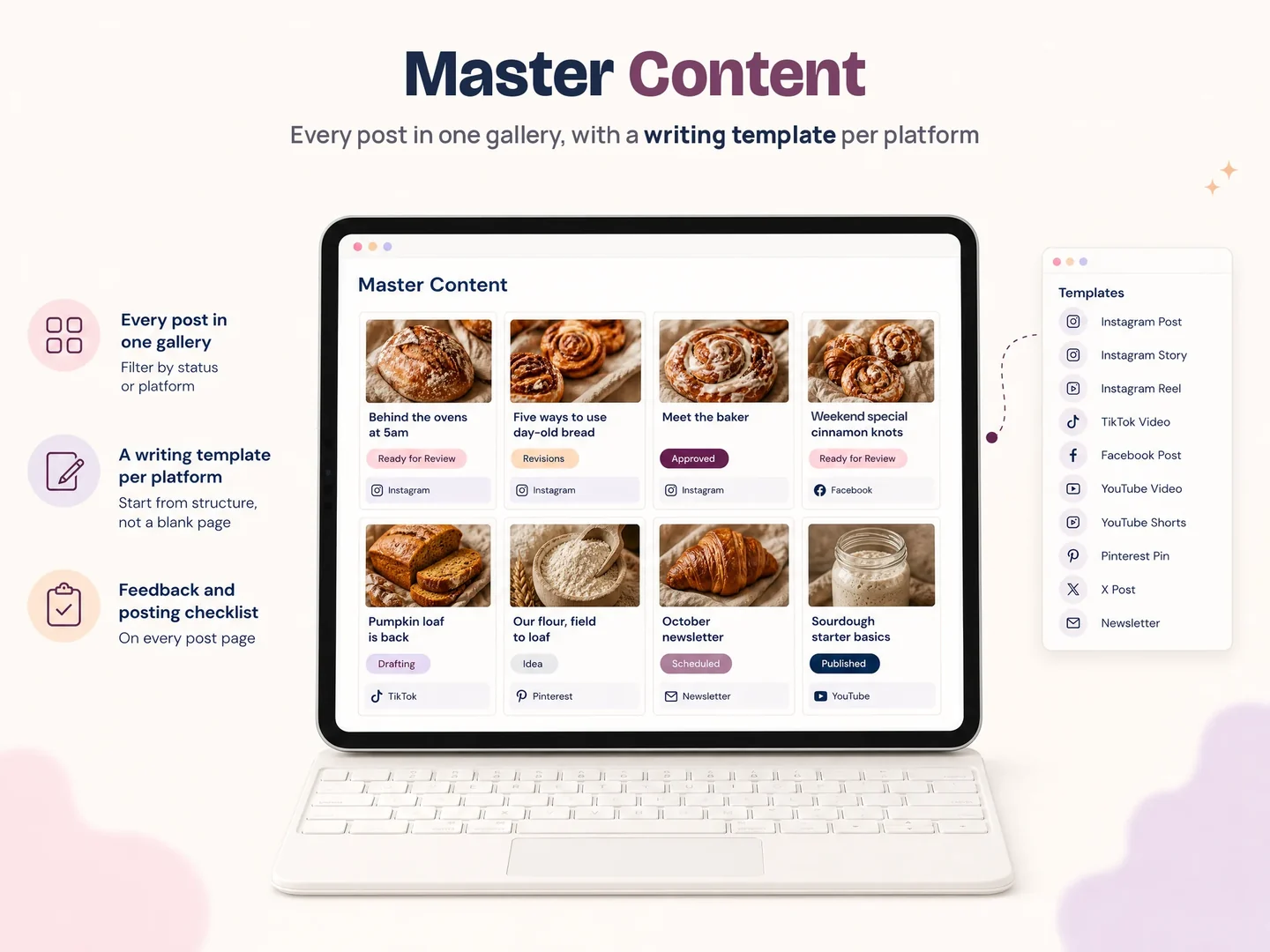
Content plan. Give each planned post a platform, intended date, content type, caption, and owner. If you publish on several channels, make the platform visible in both the calendar and the post record. A date alone does not tell the client what they are reviewing.
Post review. Put the image or video, caption, feedback, and status together. Ask the client to comment on the exact asset. If they ask to change “the second one,” they should be able to point to a numbered or titled post in the same view.
Resources and reporting. Keep approved brand references and supplied files in an easy-to-find place. Give the monthly report its own page with the measures you agreed to review and a short list of next actions. Define each measure in plain language so the report does not depend on assumptions.
Notion’s sharing controls let a page owner choose invited people, workspace access, or anyone with the web link. Notion says visitors with a web link can view without a Notion account, while commenting or editing requires a login. Guest access also requires the guest to have an account. Check the live settings and test the exact page before promising a particular client experience. Notion’s permissions guide describes the current options.
How Do You Set Up a Client Portal in Notion?
Build a client home page, add a database for posts, and test one post from draft through approval. Keep the first version small enough that a client can understand it without a walkthrough.
- Create a client home page. Add the client name and links to the calendar, shared resources, reports, and meeting notes. Put the “what to review” instruction near the top.
- Create a content database. Add one row per post. Include platform, planned date, status, caption, asset, owner, client feedback, and approval date. Use fields that answer real questions; remove fields no one checks.
- Choose a short status list. For example: Idea, Draft, Ready for review, Revisions, Approved, Scheduled, Published. Make it clear who moves a post to each stage. Hootsuite’s social media workflow guide also separates content creation, review, approval, and publishing.
- Make the client view easy to scan. Create a calendar for upcoming dates and a “Needs your review” list. Keep approved and published work out of the review queue. In each record, show the image, caption, and feedback prompt together.
- Add your supporting pages. Link onboarding, strategy, resources, analytics, meeting notes, and tasks when they are part of your service. You can add a monthly report page without forcing it into the post database.
- Test access and a complete review. Use a separate account or ask a colleague to test the client view. Check what the link exposes, whether the client can comment, and what happens if they edit a field. Run one sample post through every status before you invite a client.
Here is the useful test for each record: could the client identify the exact item, understand what you need from them, and leave the decision beside the work? If a field does not help with one of those three tasks, keep it in your private planning view or leave it out.
How Should Client Approvals Work?
Keep feedback and approval as separate decisions. A client can request a change without approving the post, and an approval should refer to the final version the client saw.
Use one status for each meaningful handoff. “Ready for review” means the manager has finished preparing the post. “Revisions” means the client has requested a change. “Approved” means the client has accepted that version. “Scheduled” and “Published” describe what happens after approval. The labels can differ, but each label should have one owner and one definition. This follows the distinction between review, approval, and publishing in Hootsuite’s approval stages.
Put the review request beside the post. Ask the client to choose: approve this version, or request a revision and name the change. If the client sends feedback elsewhere, copy the decision into the post record and point back to that record. This keeps the final instruction attached to the right caption and image.
Agree on the review window, what counts as a revision, and who can approve during onboarding. These are working expectations, not a substitute for a signed agreement. If a client has several reviewers, decide whether one person consolidates their comments or each person reviews in sequence. Hootsuite distinguishes approval paths such as linear and tiered, which can help you describe the process before you choose a tool.
Portal or Scheduler: Which One Do You Need?
A portal organizes the relationship and review context. A scheduler prepares or publishes social posts. Choose a portal when the problem is scattered plans and feedback; choose a scheduler when you need publishing features; use both when your workflow needs both jobs.
| Need | Portal | Scheduler |
|---|---|---|
| Keep briefs, resources, and client decisions together | Strong fit | Varies by product |
| Collect feedback on a draft | Depends on the setup | Often available in team plans |
| Schedule or publish to social accounts | Usually separate | Core job |
| Track onboarding and meeting notes | Often supported | Varies by product |
| Compare several platform posts on a calendar | Depends on the setup | Common feature |
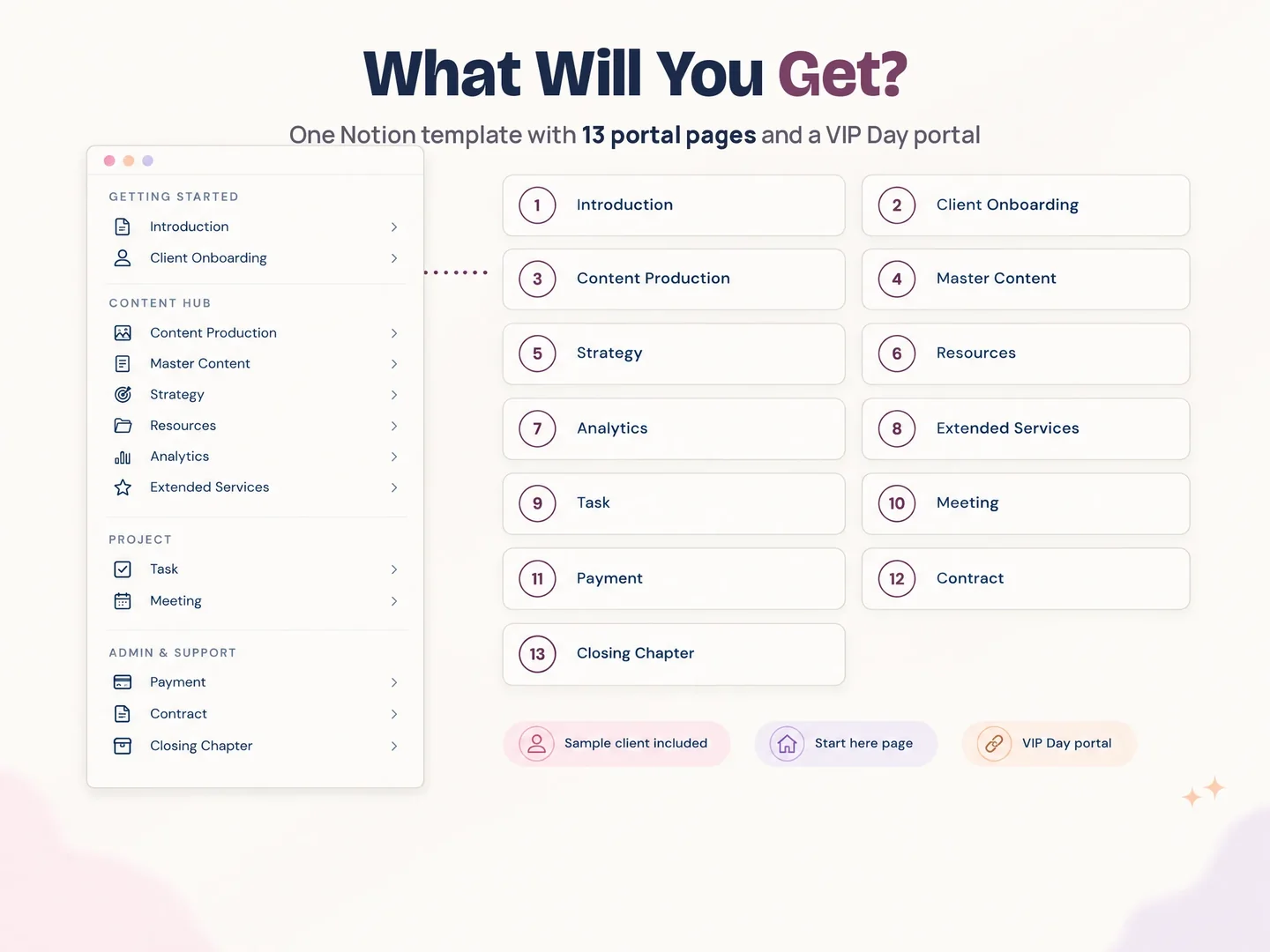
Check the specific product before you buy or build. Some platforms combine approval and scheduling. A Notion client portal can organize your process, but the template described here does not claim to connect to social accounts or publish posts. Notion SMM Portal is a Notion template for a social media manager’s client workflow, with pages for onboarding, content production, master content, strategy, resources, analytics, meetings, tasks, payment, contract, and closing work.
What Makes a Portal Hard for Clients to Use?
A portal becomes hard to use when the client has to guess where to go, which version is current, or whether a comment counts as approval. Keep the client’s next action visible and make the post itself the unit of review.
Avoid a home page that is only a list of database names. Use labels that match the client’s questions, such as “Upcoming posts” and “Needs your review.” Keep internal planning fields out of the client’s main view when they do not help the client make a decision.
Do not treat a shared link as proof of privacy. Notion lets page owners choose who can access a page, and anyone with a web link may be able to view it if that setting is selected. Review the page tree and permissions before sharing, especially when client pages sit under a common workspace.
Finally, do not make a portal the only place the client can learn the process. Explain how to review a post, where to leave a specific change request, and what happens after approval. A short note beside the review view can prevent the same process question from coming back in chat.
Why Trust This Article?
This guide uses Notion’s own help documentation for sharing and permission behavior and Hootsuite’s published explanations of content approval stages. Product details about Notion SMM Portal come from its documented contents list. We checked the linked source pages on 15 October 2026. Workspace settings and vendor features can change, so verify them before you configure a client’s access. Read the site’s about page for product context and its editorial policy for how published guidance is handled.
How Notion SMM Portal Fits In
Notion SMM Portal is a 13-page Notion template for social media managers who want a repeatable home for client work. Its listed pages cover onboarding, content production, master content, strategy, resources, analytics, extended services, tasks, meetings, payment, contracts, and closing work. The content templates cover Instagram, TikTok, Facebook, YouTube, Pinterest, Twitter, and newsletters.
For the approval handoff, the documented workflow includes statuses from Idea to Published and client buttons for Mark as approved or Need revision. It also includes monthly report and audit templates. The template does not publish to social accounts for you. You still decide how to share the pages, who may see them, and which review steps fit your client agreement.
If you want a ready-made Notion structure for that work, see Notion SMM Portal. Review the page list and decide whether it matches the way you onboard, plan, approve, and report for clients.
Frequently Asked Questions
What is a social media client portal?
A social media client portal is a shared workspace for plans, drafts, files, feedback, approvals, and reports related to a client’s social accounts. It can be built in a scheduler, project tool, or Notion. The portal should make the current work and the client’s next action easy to find.
What should a social media client portal include?
Start with a client home page, content calendar, one review record per post, shared resources, and a reporting page. Add onboarding, strategy, meeting notes, or task pages when those pages support the service you provide. Keep the front view focused on what the client needs to review.
Can I make a social media client portal in Notion?
Yes. Use a client home page and a content database with one record per post. Add the platform, planned date, caption, asset, status, feedback, and owner. Then create a calendar and a filtered review list. Test sharing and permissions before using it with a client.
Does a client need a Notion account to view a portal?
It depends on the sharing method. Notion’s help page on sharing and permissions says an “Anyone on the web with link” visitor can view without a Notion account, but needs an account to comment or edit. A guest invited to a page needs a Notion account. Confirm the current setting in your workspace.
Is a client portal the same as a social media scheduler?
No. A portal keeps client-facing work and decisions together. A scheduler handles preparing, scheduling, or publishing content. Some services offer both, but a Notion portal does not publish to social accounts by itself. Check each tool’s features before designing the workflow around it.
How do I stop clients from giving vague feedback?
Ask for feedback on a named post and put the image and caption in the same record. Give the client a clear choice to approve the version or request a specific change. Keep the final approval attached to that version so no one has to infer what “looks good” referred to.
What is the fastest way to set up a social media client portal?
Begin with one client home page, one post database, and a short status list. Test a single post from idea through approval, then add the support pages your service uses. A template can save the initial page-building work, but you should still check each view and access setting.
Frequently asked questions
What is a social media client portal?
A social media client portal is a shared workspace where a manager and client can review the work for that account. A useful one brings the content plan, assets, feedback, approval status, and reporting into a clear client view. It may live in a scheduler, project tool, or a Notion workspace.
What should a social media client portal include?
Start with onboarding details, a content calendar, a place for each draft and its feedback, a clear approval status, shared resources, and a reporting page. Add strategy, meeting notes, tasks, and payment or contract records only when they belong in your service workflow.
Can I make a social media client portal in Notion?
Yes. Create a client home page and connect it to a content database with one item for each post. Add fields for platform, planned date, status, caption, asset, feedback, and approval. Test the client view and permissions with a separate account before you share it.
Does a client need a Notion account to view a portal?
It depends on how you share the page. Notion says anyone with a web link can view a page without a Notion account, while visitors need to be logged in to comment or edit. Guest sharing works differently and requires the guest to have an account. Check the current workspace settings before you promise a login-free review.
Is a client portal the same as a social media scheduler?
No. A portal organizes client-facing plans, drafts, decisions, and records. A scheduler prepares or publishes posts to social networks. Some tools combine both jobs; a Notion portal can support review and organization, but it does not publish to social accounts by itself.
How do I stop clients from giving vague feedback?
Ask for feedback on one named post at a time. Include the platform, date, caption, and asset in the same record, then ask the client to choose a clear next step such as approve or request a revision with a specific note. Agree on review timing and revision scope during onboarding.
What is the fastest way to set up a social media client portal?
Use one client home page, one content database, and a small set of review statuses. Add only the pages your service uses, test a single post through the full review path, then duplicate the setup for another client. A ready-made Notion template can give you the starting structure.
