Social Media Content Approval Process for Clients: 5 Clear Stages
Social media content approval process for clients: use five clear statuses, put feedback beside each post, and record approval as a separate decision.
By Notion SMM Portal by Cosmo Suite · Editorial policy
Published · 9 min read
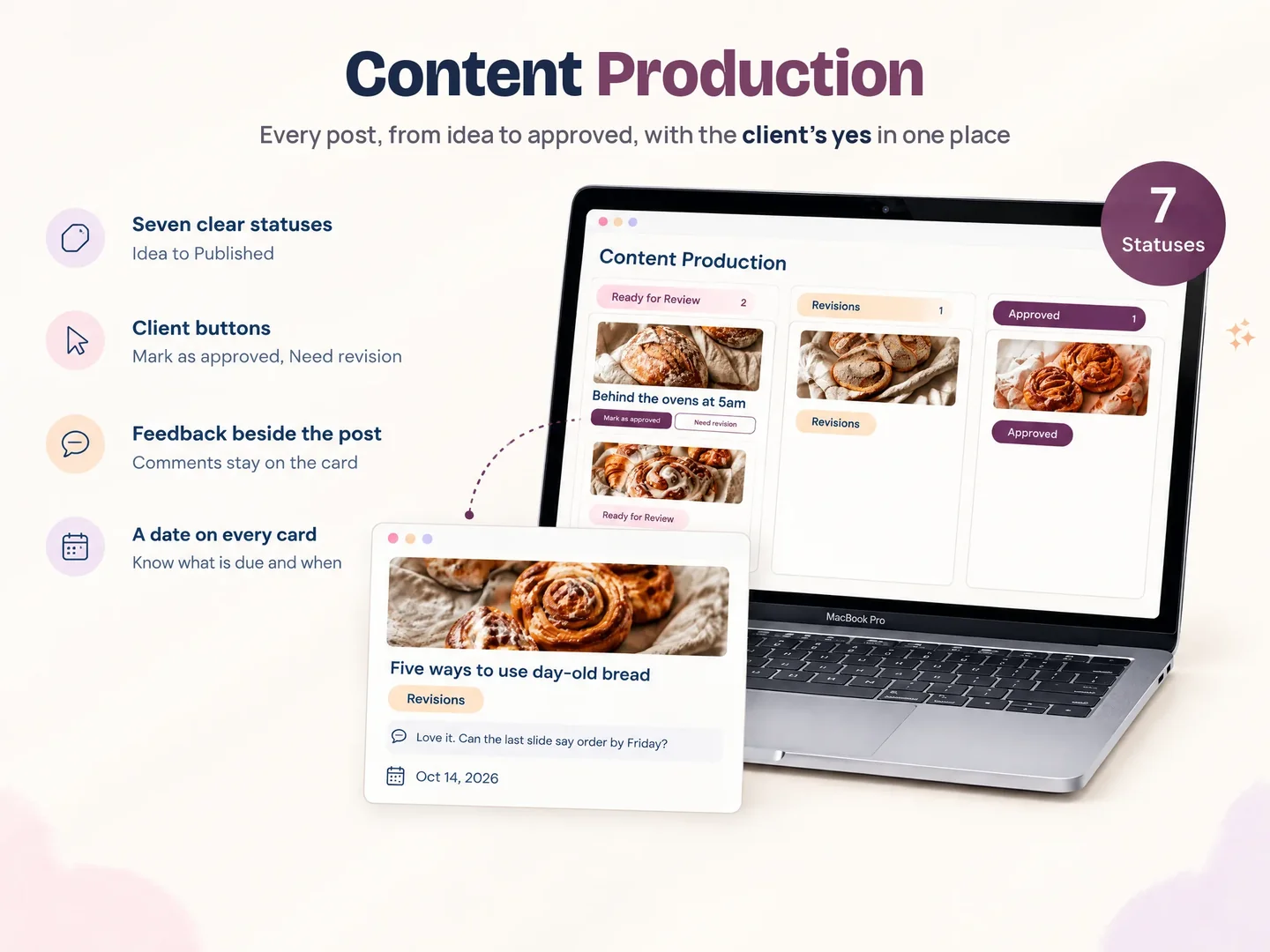
If your client says “can you change the second one?” after you sent a batch of posts, the problem is not just vague feedback. The post, its creative, the comment, and the approval may be sitting in four different places.
A social media content approval process for clients gives every post one clear route: Idea, Draft, Ready for review, Revisions, Approved. Feedback describes a change; approval records a decision on the version the client saw. Keep both beside the post so the next step stays clear.
This guide gives you a five-status workflow, a copyable post record, and a way to handle late or unclear feedback without guessing what “looks good” means.
What Is an Approval Workflow Process?
An approval workflow is the sequence a piece of work follows before it is cleared to move forward. For a client social post, it should identify the person preparing it, the person reviewing it, what counts as a requested change, and who makes the final approval decision.
The workflow is useful only when each status has one meaning. If “review” can mean “I saw it,” “I have edits,” or “go ahead and publish,” the label will not settle a disagreement later. Use a separate feedback field and approval action, even if both happen in the same tool.
If you want the status and the post record ready to adapt, Notion SMM Portal includes a content production page and client actions for approval or revision.
Sendible's client approval guide describes a flow where a manager prepares content, sends it to a named approver, and the client accepts it or requests changes. Its support instructions for sending a post for approval add a useful caveat: availability depends on the plan. That is one software implementation. The same decision path can be recorded in a content board or shared client workspace.
For a page-by-page look at what belongs in that workspace, see the social media client portal guide.
A Five-Status Client Approval Process at a Glance
Use five statuses for the decision path, then treat scheduling and publishing as separate production steps. This keeps a post from looking approved simply because someone moved it into a calendar.
| Status | Who acts | What changes | What moves it forward |
|---|---|---|---|
| Idea | Manager | Topic and purpose are captured | You decide it belongs in the plan |
| Draft | Manager or creator | Caption and creative are assembled | The draft is complete enough to review |
| Ready for review | Client | Exact post is shared with a clear ask | Client approves or requests a change |
| Revisions | Manager or creator | Requested edits are made and noted | Updated version is sent back for review |
| Approved | Client, recorded by manager | A specific version is cleared | Scheduling or publishing follows your service process |
Keep the status names visible in the content view. A client should not need to open a separate message thread to learn whether a post needs their attention.
What Is a Content Workflow?
A content workflow covers the full path from deciding what to make through publishing and reviewing its results. Approval is one checkpoint in that path, not a synonym for the whole process.
For client work, the larger path may look like this: plan the topic, draft the caption and creative, request client review, revise if needed, record approval, schedule or publish, then report. The exact tools vary. Sendible’s guide covers stakeholders, a content calendar, sending work for approval, and the client’s decision. MixBloom’s review instructions describe a similar checkpoint: the client reviews content, then it is scheduled after approval.
If you build this in Notion, its database properties guide explains how a Status property tracks an item’s progress. The guide groups statuses under broad To-do, In Progress, and Complete categories, so choose labels that tell the client which decision is waiting, such as Ready for review or Revisions, instead of relying on a general progress label alone. Notion’s database property documentation describes the available property types and how to use them.
The distinction helps you diagnose a stalled post. If the client has not seen it, the work is waiting for review. If the client left comments, it is waiting for revisions. If the client approved the visible version, it can move to the next production step. “Waiting” by itself hides which person needs to act.
Do not use approval as a promise that a platform has published the post. Scheduling and publishing are separate actions, and a portal may organize review without connecting to social networks. Tell the client which step your service handles and where they can see its status.
What Should a Client Approval Request Include?
A useful approval request shows one identifiable post, the decision you need, and the date by which the client should respond. Put enough context beside the work that the client can review it without searching through a separate message.
Use a record like this for each post:
| Field | Example or prompt |
|---|---|
| Post ID | 03, or a short descriptive title |
| Platform and planned date | Instagram, 24 October |
| Caption | The exact caption proposed for this version |
| Creative | The image, carousel, or video to review |
| Feedback | One comment tied to this post |
| Decision | Approve / Request a change |
| Review-by date | The date agreed during onboarding |
| Owner and next step | Manager revises / manager schedules |
Numbering is a small but practical detail. It gives both people a stable way to refer to a post in a batch. “Change post 03’s opening line” is easier to act on than “change the second one,” especially after the order changes.
When you send a batch, do not ask the client to approve “everything” without showing what is included. Name the posts that need a decision, say whether the captions and creative are both ready, and make the response choices explicit. A clear prompt could be: “Review posts 03–06. For each one, choose Approve or Request a change and leave the note beside that post. Please respond by the review date shown.”
How Do You Separate Feedback From Approval?
Feedback is the explanation; approval is the decision. Keep them separate so a request for edits cannot be mistaken for permission to proceed.
Consider a client comment such as “Looks good, can we make the headline shorter?” It contains a positive reaction and a requested change. Leave the status at Revisions, capture the shorter-headline request, and return the changed version for a decision. Do not mark the post Approved based on the first phrase alone.
Use a small decision rule:
- Question only: answer it, then keep the post in Ready for review until the client decides.
- Change requested: move it to Revisions and copy the request into the post record.
- Clear approval: record the date and version the client approved, then move it to Approved.
- New material edit after approval: send the changed version through review again.
Avoid treating silence, a thumbs-up on an unrelated message, or approval of an earlier draft as approval of the current version. If a client uses informal replies, restate the decision in the record: “I have this version marked approved. I’ll move it to scheduling now.” That gives them a chance to correct a misunderstanding before the next step.
Keep the connection between a post, its feedback, and the decision to proceed. That record is what makes the workflow useful later.
How Do You Set Up the Workflow With a Client?
Agree on the review rules before the first content batch. A status board cannot resolve different assumptions about who approves, what a review includes, or when an unanswered post should be followed up.
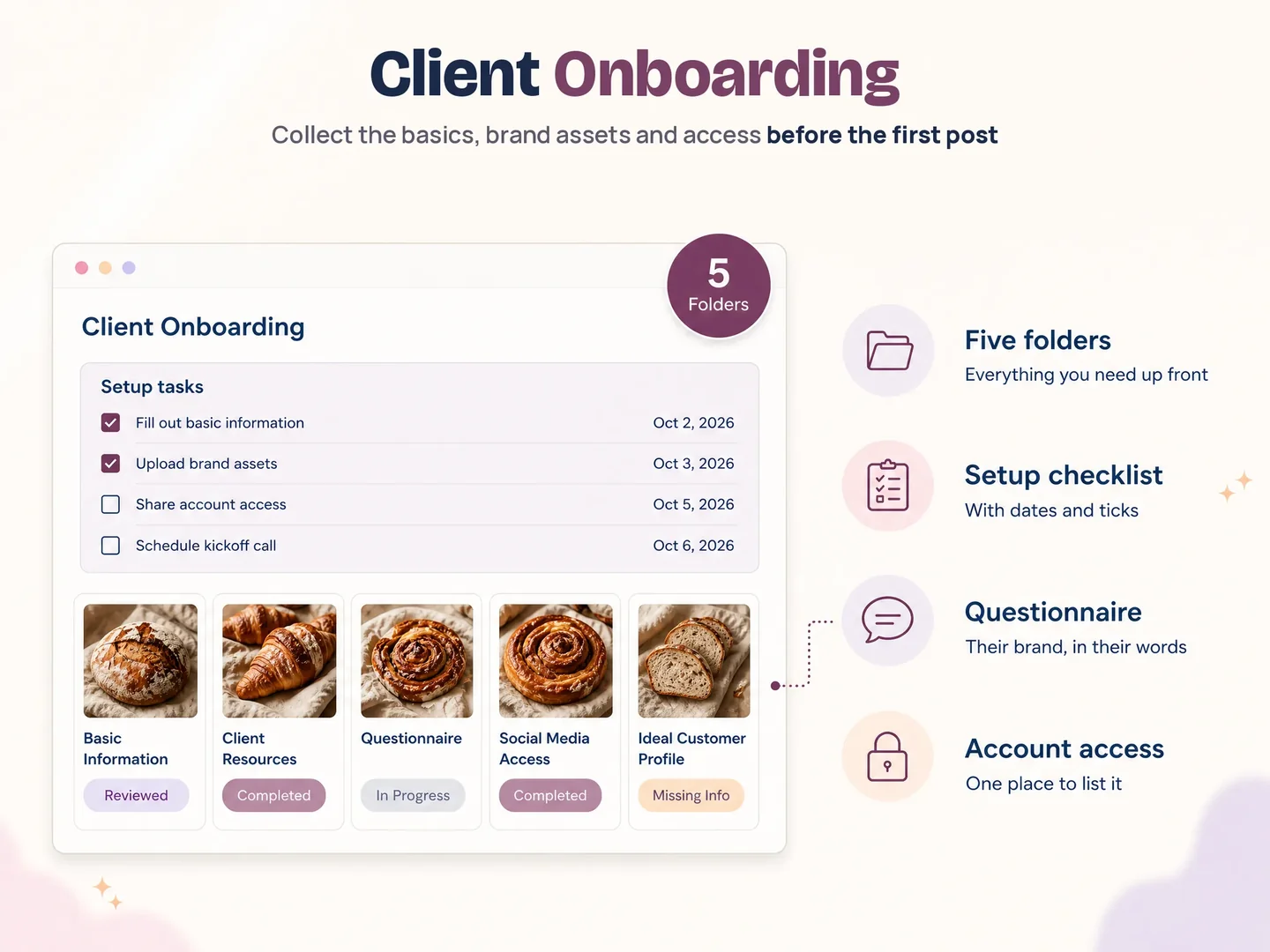
At kickoff, write down the approver for each account, where the client should leave comments, and how you will show a new version. Agree on a review date that fits your actual schedule. Avoid promising a universal turnaround time; client availability and the service agreement differ.
Then test the workflow with one sample post. Move it from Idea to Draft, send it for review, add a sample change, and return it for a clear decision. Check that the client can identify the post and that the final status is visible in the place you both use. Fix confusing labels before you add a full month of work.
If your current process spreads feedback across WhatsApp, email, screenshots, and a spreadsheet, move the review details to one post record first. You can keep the conversation channel your client prefers, but copy the decision and actionable note beside the post so the record stays useful.
What Actually Keeps Approvals Moving?
The workflow moves when every status answers two questions: who acts next, and what evidence shows that their step is complete. A more elaborate board will not help if those answers are missing.
One post per decision. Keep each caption and creative tied to one record. If a batch has several posts, give each a number or title before the review request goes out.
One named approver. Ask the client to choose the person who gives the final decision. Other people can contribute notes, but the manager should know whose approval moves the post forward.
One place for actionable feedback. A note in a chat can alert you that a post needs attention. Copy the request to the post record and point to the affected line, frame, or asset. The next person should not have to reconstruct the change from a screenshot.
A visible next step. After approval, show whether the post is waiting to be scheduled, scheduled, or published. Those are production statuses after approval, not additional approval decisions.
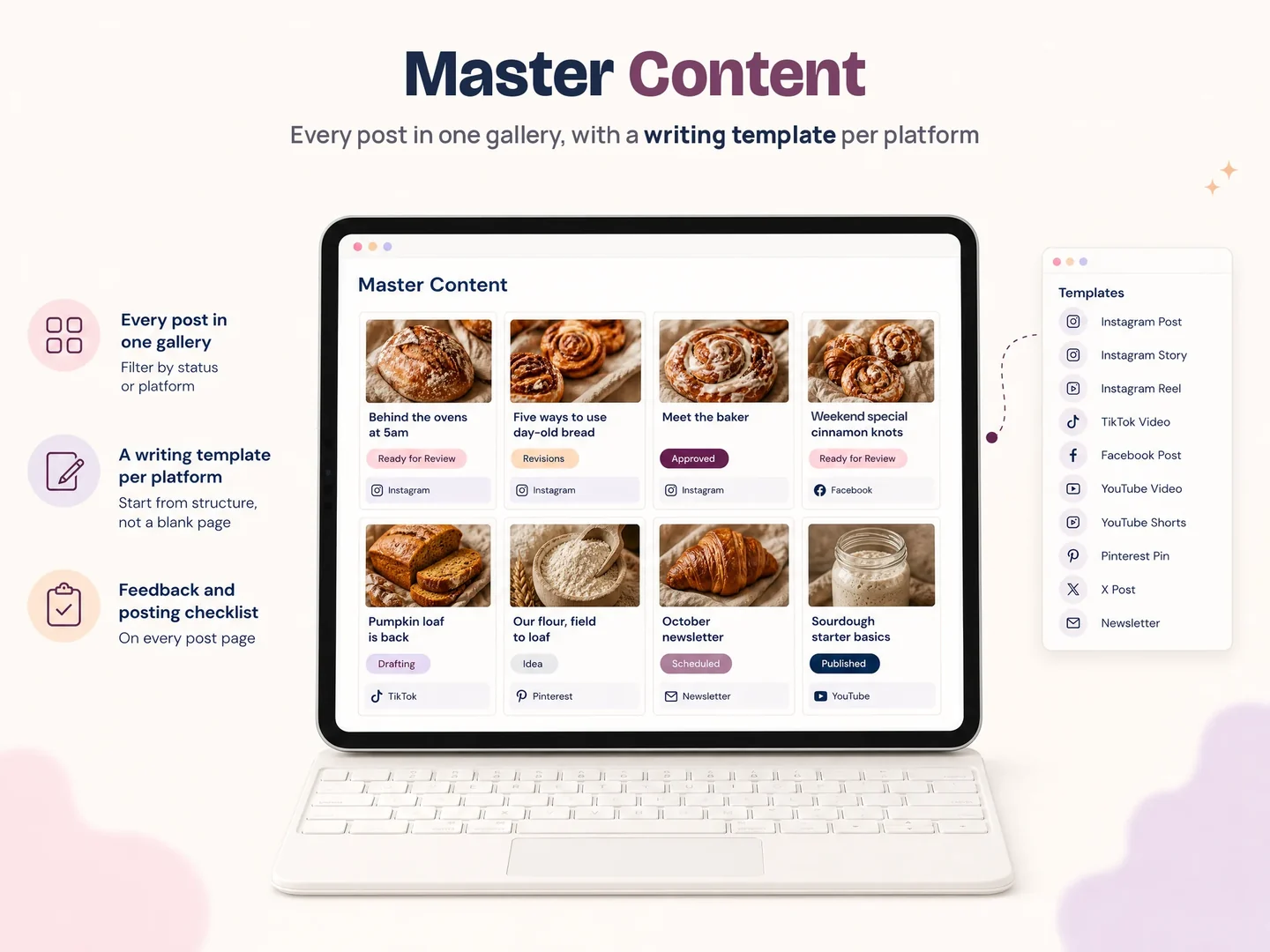
A client portal for social media work gives the client-facing plan, content, resources, and review status a shared home. Notion SMM Portal includes content production and master content pages, platform content templates, statuses from Idea to Published, and client buttons for Mark as approved or Need revision. It does not replace an agreement about who approves or connect itself to every publishing tool.
Why Trust This Article?
This article is from the Cosmo Suite team, which built Notion SMM Portal. Product details come from the template’s 13-page contents list. The workflow examples are practical guidance, while software-specific details link to Sendible and MixBloom documentation checked on 16 October 2026. Learn more about Cosmo Suite, how the team prepares and checks posts in its editorial policy, or contact the team to report a factual error.
How Does Notion SMM Portal Fit This Process?
Notion SMM Portal is a Notion template for organizing the client-facing work around social media management. Its contents include client onboarding, content production, master content, strategy, resources, analytics, meetings, tasks, and monthly report and audit templates.
For an approval workflow, the relevant pieces are the content production and master content pages, the Idea-to-Published statuses, and the client actions Mark as approved and Need revision. You still decide how your client reviews each version, who can approve it, and what happens after approval. Check the template’s sharing settings against the access you want before you invite a client.
If you want those pages and statuses in a ready-made structure, see the Notion SMM Portal. You can compare its page-by-page setup with the guide linked earlier before deciding what belongs in your own workflow.
Frequently Asked Questions
What is an approval workflow process?
An approval workflow process is the sequence of steps and decisions used to review work before it moves forward. For social posts, it identifies who drafts, who reviews, how edits are requested, who approves the final version, and what follows approval.
What is a content workflow?
A content workflow is the complete process from planning and drafting to review, publishing, and reporting. Client approval sits inside that path. It does not automatically include scheduling or publishing unless your tool and service handle those steps.
Should feedback and approval be separate?
Yes. Feedback describes a question or change. Approval confirms that the client accepts a particular version. Recording both separately prevents comments such as “looks good, but change the headline” from being treated as final approval.
What should I do when the client does not reply?
Keep the post in Ready for review and follow the review timing you agreed on. Send a concise reminder that names the post and the decision needed. Do not treat silence as approval unless your client agreement and process explicitly say otherwise.
Do clients need a special tool to approve posts?
Not always. Teams can use a shared content workspace, a scheduler with approval features, or another agreed channel. Whatever the tool, attach feedback and the decision to the exact post and make the next step visible.
Does approval mean the post is published?
No. Approval says the reviewed version is cleared to proceed. Scheduling or publishing comes afterward. Track that production step separately so the client can distinguish a cleared post from a live one.
Frequently asked questions
What is an approval workflow process?
An approval workflow process is the agreed set of steps a piece of work follows before it is final. For social content, it names who prepares a post, who reviews it, how changes are requested, who approves the final version, and what happens after approval.
What is a content workflow?
A content workflow is the full path from planning and creation to review, approval, scheduling or publishing, and reporting. The approval part is one checkpoint inside that larger workflow.
How many approval stages should a social media post have?
Use as few stages as your team needs to make ownership clear. A small client team can start with Idea, Draft, Ready for review, Revisions, and Approved, then mark scheduling and publishing separately if those steps matter to the client.
Should client feedback and approval be separate?
Yes. A comment explains what to change or asks a question. Approval confirms that a specific version is ready to move forward. Record the decision separately so a polite reply such as 'looks good' does not get confused with a request for edits.
What should a client approval request include?
Show the exact post, platform, planned date, caption, creative, and a short prompt. Ask the client to approve or request a change, and include the review-by date you agreed on. Keep the reply attached to that post.
What happens when a client asks for a revision?
Move the post to Revisions, keep the requested change with the post, and name who will update it. When the new version is ready, send it through review again. A material change after approval should return to the approval step.
