Notion Content Calendar for Clients: Share It for Review
Notion content calendar for clients: plan posts, set up a review view, and check page access before you share the link with each client.
By Notion SMM Portal by Cosmo Suite · Editorial policy
Published · 9 min read

A client opens your calendar to check next week's posts, then asks whether the page also exposes every other client's work. That is a permissions question, but it is also a design question: the calendar must be easy to review and clear to share.
A Notion content calendar for clients is a planned view of posts that a social media manager shares for client review. Set up two layers: a working calendar for your planning and a client-facing page with the posts and details the client needs. The guide below covers the fields, sharing choices, and a permission check to run before sending the link.
A client calendar needs a planning view and a review view
A client calendar works best when your planning view holds the full workflow and the client view makes the next decision easy to see. One calendar can serve both roles if the client has the right access and sees only the information they need.
Your working view can hold draft notes, assignments, campaign context, and internal reminders. In the review view, the client should be able to identify each post, see its planned date, review the copy and creative, and tell whether they need to act. Separate the two jobs so a draft is not mistaken for approved content.
The calendar is not a scheduler. It records plans and review status. Your publishing tool or service process remains a separate step, so label the status accurately and do not imply that changing a calendar item publishes a post.
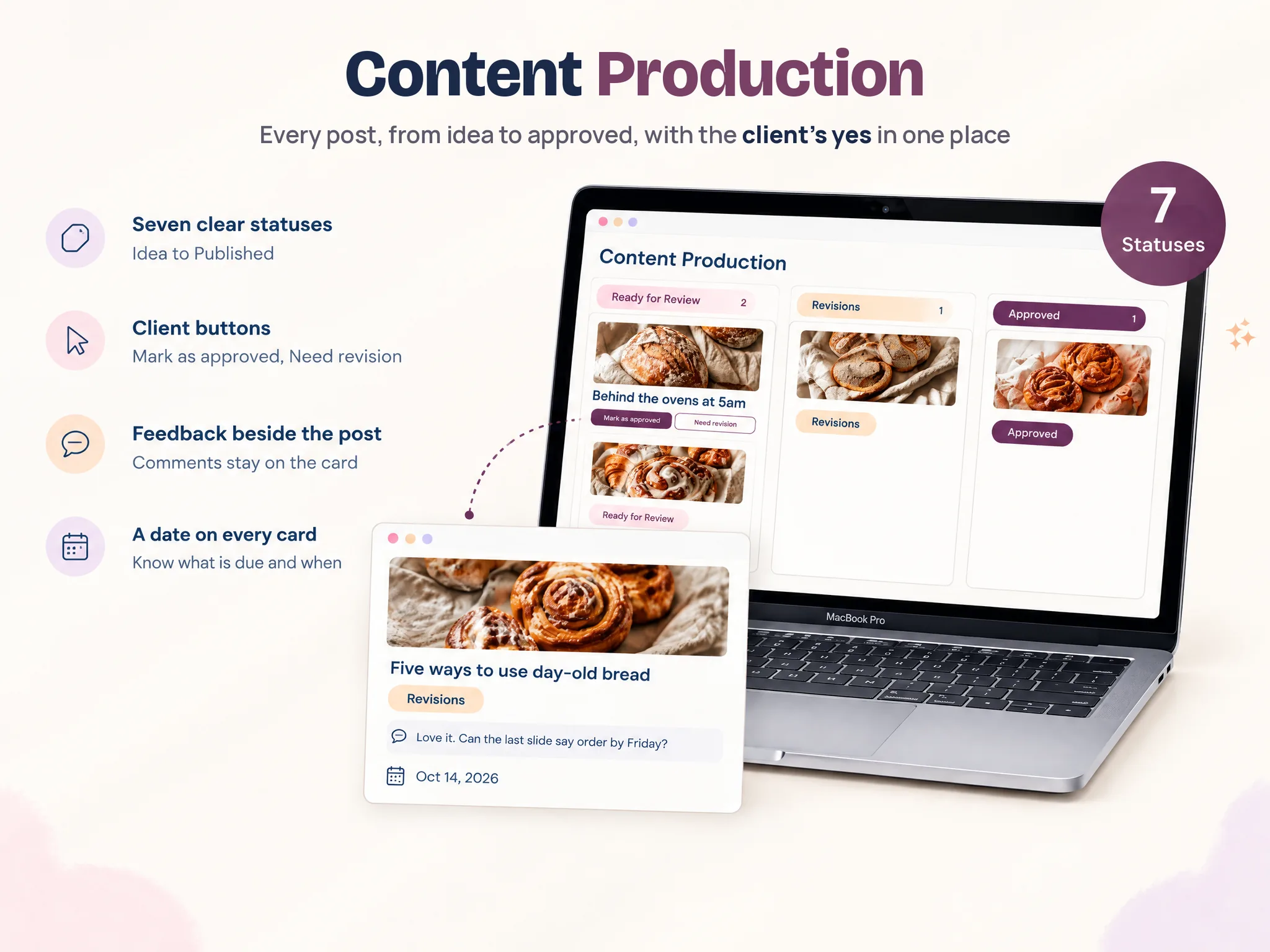
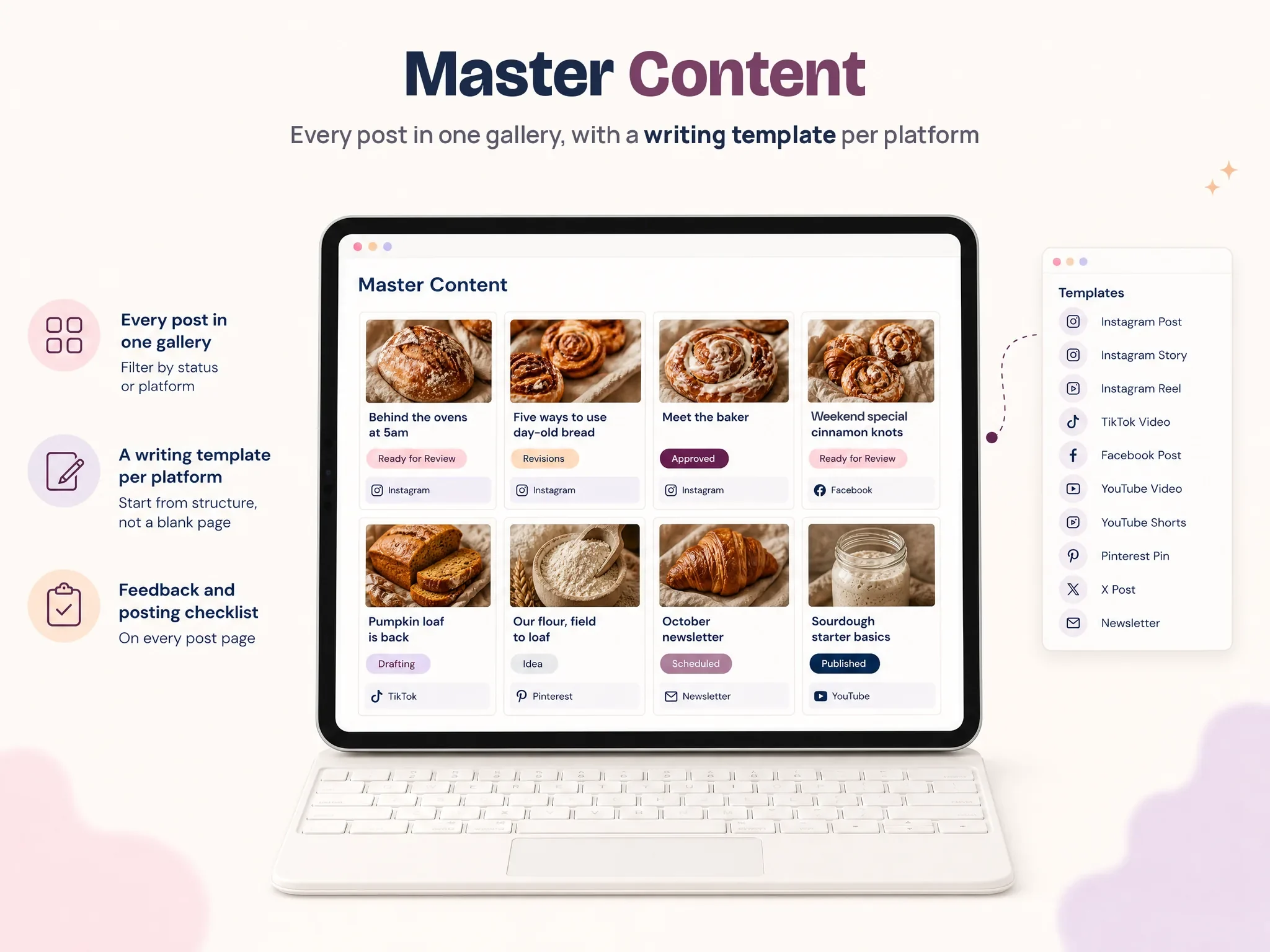
Before adding a field to the shared view, ask whether the client needs it to understand or approve the post. If not, keep it in your working view. Notion SMM Portal includes content production and master content pages for planned work and review status.
Notion content calendar sharing options at a glance
Choose the sharing method based on whether the client needs to identify themselves, comment, or only read the page. Notion has both direct guest invitations and public links, and those choices have different access implications.
| Sharing method | Client experience | Permission choice | Watch for |
|---|---|---|---|
| Invite as a guest | Client opens a shared page in Notion | Can view, Can comment, or another needed level | The guest needs a Notion account; check the guest limit and workspace settings |
| Anyone on the web with link | Client opens the page from a link | Can view for review-only access | Anyone with the link may access the page; inspect its contents before sharing |
| Publish as a Notion Site | Page is available as a public website | Public viewing settings | Subpages may also publish; database visitors may switch views and open records |
For a private client relationship, invite the client as a guest to a page made for them. A public link is easier to open, but anyone with the link may access it. A Notion Site is a publishing option, not a private portal. Notion's sharing guide explains that a visitor can view an anyone-with-link page without joining the workspace, while commenting or editing requires a login.
Match access to the review routine. Can view works when the client reads the content and sends feedback through an agreed channel. Can comment keeps notes beside the page. Edit access gives the client more control, so use it only when they need to change content directly.
What should a client-facing content calendar show?
A client-facing content calendar should make each post easy to identify and review without exposing private planning notes. Start with a short record and add fields only when they answer a question the client needs to resolve.
| Field | What it helps the client check |
|---|---|
| Working title or post topic | Which piece of content they are reviewing |
| Platform | Where the post is intended to appear |
| Planned date | When you currently expect it to go out |
| Status | Whether it is a draft, ready for review, or approved |
| Caption or draft link | What words the client is being asked to review |
| Creative | The image, video, or design tied to the post |
| Feedback and decision | What needs changing and whether this version is cleared |
A calendar view groups items by date. A board or gallery can make statuses or creative easier to scan. Notion's database views guide covers calendar, table, board, and gallery layouts, plus filters and sorts. If you use one database, make the client-facing view clear about the next action.
Keep one distinction in mind: a view changes what the page displays, while an access rule controls who can see the information. A filter alone does not make records private. Notion offers database page-level access as a separate feature on Business and Enterprise plans. If clients use a shared source database, check that your plan and access rules support the setup.
How do you share a Notion calendar with a client?
To share a calendar, open the client page, choose how the client will access it, and set the lowest permission that supports review. Then test the page from the client's perspective. That catches a wrong link or a page that reveals too much before you send it.
- Prepare the page. Create or duplicate the client-specific page, then remove internal notes and any content that is not for this client. Check its subpages and linked database views.
- Choose the access route. Invite the client by email as a guest if access should be limited to named people. Use Anyone on the web with link only when public link access is acceptable for the information on that page.
- Set the permission. Pick Can view when the client only needs to read. Pick Can comment when they should leave comments in Notion. Avoid edit access unless direct changes are part of your agreed process.
- Copy the page link. Use the page's Share menu so you send the exact client page, not your internal database or workspace home.
- Test as a client. Open the link in a private browser window or a separate client account. Check what loads, whether the client can see only the intended records, and whether comments or edits work as expected.
- Send a short instruction. Tell the client what to review, where to leave feedback, and what decision to make. Include the review date only if you and the client have agreed on it.
Notion's sharing and permissions guide says guests need their own Notion account. Anyone with the link can view a public sharing page without joining the workspace, but commenting or editing requires a login. These are different sharing routes, so test the one you plan to use. Notion's publishing guide also says published sites can include subpages by default, and database visitors may switch views and open records.
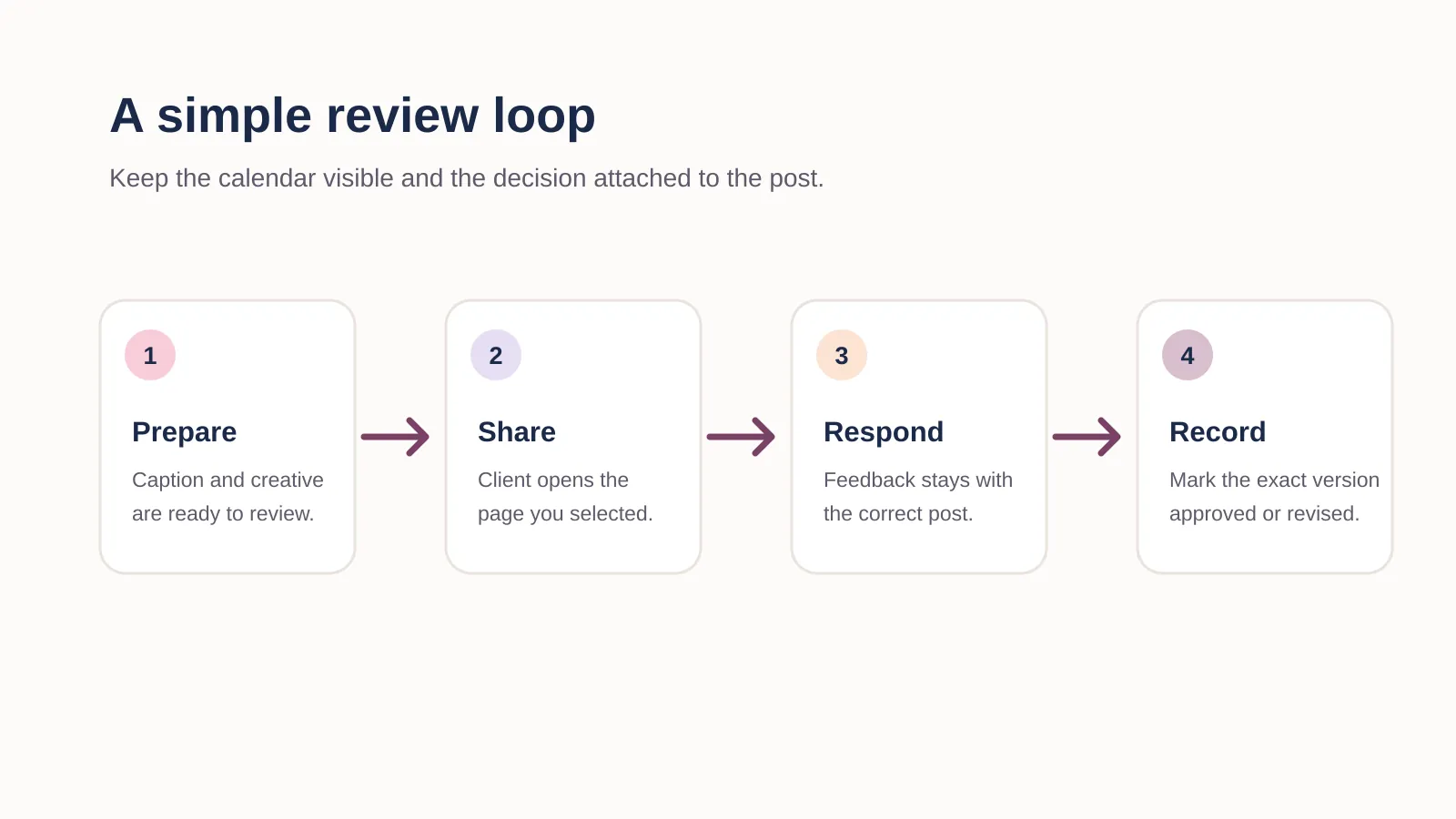
[UNIQUE INSIGHT] A four-part handoff test: choose one post and trace it through the whole review. Can the client identify the post and planned date? Can they open the caption and creative? Can they leave feedback in the agreed place? Can you record whether the reviewed version was approved or needs revision? If any answer is unclear, adjust the client view or instructions before sharing the rest of the calendar. This test joins the page fields, access check, feedback route, and decision status into one repeatable review.
Illustrative example: a post card has a date and caption, but its creative link is missing. The client can open the calendar and read the copy, yet cannot review the complete post. Keep that item in Ready for review only after the missing asset is attached; then record the client's response against that version. The research method for this guide was to map each sharing route to the client action it supports, then check the handoff against Notion's permission and view documentation.
Wait to send the link until the preview matches what the client should see. If another client's information is visible, change the page structure or access rules. A filtered calendar is not a substitute for checking permissions.
How do you keep review clear without giving editing access?
Ask for one clear decision on each post and keep that record separate from its calendar date. View-only works when the client can approve or request a change through another agreed channel. Comment access keeps the note near the post, but a comment alone does not approve it.
A short review routine can use three states:
- Ready for review: the current caption and creative are complete enough for the client to assess.
- Revisions: the client has asked for a change, or you are preparing the next version.
- Approved: the client has clearly approved the version now shown.
Use labels that tell the client whether they need to act. “In progress” is vague; “Ready for review” names the next step. The five-stage approval process for client social content explains how to record feedback separately from a decision.
If a client says “looks good, can you shorten the opening?”, treat it as a revision. Make the change, show the new version, and ask for approval again. That ties the decision to the copy and creative the client actually reviewed.
Say where feedback belongs. If the client prefers email or WhatsApp, keep that channel and copy the useful note into the post record. If they comment in Notion, show which page to use and how you will record the decision. Agree on this during onboarding, before the first batch is ready.
What makes a shared calendar useful after the first month?
A calendar stays useful when it carries the context needed for the next decision. Keep a regular review window, use the same status names, and agree on one place for feedback. Then older posts still make sense when the calendar moves into a new month.
At the end of the month, look at which fields clients used and which questions came up more than once. If a status needs explaining, rename it. Show the caption if clients need it, and keep the internal brief private. When a post appears in more than one view, make the current version easy to spot.
Start with one page per client and a small calendar view. Add a separate working view when you need one. The client does not need your whole system. They need to find the posts they are reviewing and see what to do next.
Why Trust This Article
This guide is from the Notion SMM Portal team at Cosmo Suite. We checked the sharing steps and permission names against Notion Help on 22 October 2026. Notion can change its interface and plan features, so check the current settings in your workspace before sharing client work. The about page gives product context; the editorial policy explains how the site handles its published guidance.
How Notion SMM Portal fits in
Notion SMM Portal is a Notion template for social media managers. It includes content production and master content pages, plus post statuses from Idea to Published. Clients can mark a post approved or request a revision. The template does not schedule or publish posts.
The template gives you a starting structure for a client calendar and its review statuses. You still choose what to share, set Notion permissions, and test the link. For a page-by-page map of the workspace, read the social media client portal guide. Notion SMM Portal includes the content and status pages for you to adapt.
Try the setup with one post first. Share it with the permission you plan to use, ask the client to review it, and check that their response fits your process. Then adapt the structure for the rest of the calendar. Explore the Notion SMM Portal content calendar and approval workspace.
Frequently asked questions
How do I share a Notion content calendar with a client?
Open Share on the page. Invite the client as a guest with the access they need, or choose Anyone on the web with link under General access and set the permission to Can view. Open the link in a private browser window before you send it.
Can a client view a Notion page without an account?
Yes, when General access is set to Anyone on the web with link and the client only needs to view the page. Notion says a visitor must log in to comment or edit. A guest invitation requires a Notion account.
Can I let clients review a calendar without editing it?
Yes. Choose Can view when a client only needs to read. If they should comment in Notion, choose Can comment and test it on the page you plan to share. For view-only access, agree on another place for feedback.
What should a social media client content calendar include?
Give each post a working title, platform, planned date, status, caption or draft link, and the creative for review. Keep feedback and the decision with the post, then hide fields the client does not need.
Will a client see only the calendar view I share?
No. A filter only changes what a view shows. Check the page, database, nested pages, and linked views using a client account. Share a page for that client or use Notion's database page-level access if your plan and setup support it.
Should clients edit the content calendar directly?
Only if clients need to change the calendar as part of your process. Can view covers a read-only review. Can comment keeps notes beside the post; edit access lets the client change page content or database entries.
How do I keep a client calendar from becoming hard to use?
Keep the next action in the status, hide fields the client doesn't need, and agree where feedback belongs. Try the setup with one post before sharing the full calendar.
