Get Clients Out of WhatsApp for Content Approvals
Get clients out of WhatsApp for content approvals by giving each post one review link, a clear decision, and a clear next step.
By Notion SMM Portal by Cosmo Suite · Editorial policy
Published · 8 min read

You send a batch for review. The client replies in WhatsApp: “Can you change the second one?” A screenshot follows, then a voice note, and later a thumbs-up that might refer to the revised caption or the original. A long conversation can make it hard to find the current post, requested edit, and final decision together.
To get clients out of WhatsApp for content approvals, move the approval record to one place per post. Give each post a name or number, keep the version under review beside it, and record the feedback and decision there. You can still use WhatsApp to send the link or handle a quick question. The goal is to stop reconstructing approval from scattered messages.
Key takeaways
- Keep WhatsApp for quick coordination if the client prefers it.
- Put the current post version, actionable feedback, approval, and next step in one record.
- Use a clear post name and decision request so the client knows what to review.
- Check page access and inherited permissions before sharing client work.
What Should Move Out of WhatsApp?
A content approval record is the place where one post’s current version, actionable feedback, client decision, and next step stay connected. Move those details there, while casual coordination can stay in the channel you and the client already use.
| Keep in the conversation | Keep with the post | Why it matters |
|---|---|---|
| “I’ve sent this month’s batch” | Post name, platform, and planned date | The client can identify the item without counting its position in a changing list |
| “Could you review today?” | The exact caption and creative version | Feedback stays attached to the work it describes |
| A quick clarification question | The requested change and who owns it | The revision does not disappear in a thread |
| A reminder that the deadline is near | The client’s decision and date | The next person can see what was agreed |
| “Thanks, got it” | The next step after approval | Approval does not get mistaken for scheduling or publishing |
Use chat to point to the post, then keep the decision beside that post. If you want one place for the content calendar and review details, a client portal for social media work can give the client and manager a shared reference. Agree first on what belongs there and what stays in chat.
The social media client portal guide explains the types of pages a portal can hold.

How Do You Set Up a Single Approval Record?
Make one record for each post or other clearly defined item, then keep every review round attached to that record. A client should not have to infer which version, image, or decision you mean.
Use a short set of fields:
| Field | What to put there |
|---|---|
| Post ID | A stable number or short title, such as “03: winter menu” |
| Channel and date | Platform and planned publication date |
| Current version | Caption and the corresponding creative, clearly marked as the version under review |
| Decision needed | Approve this version, answer a question, or request a change |
| Feedback | The specific edit, question, or confirmation tied to this item |
| Review date | The date you and the client agreed to use |
| Next owner | Who acts after the client responds |
For example, replace “change the second one” with a record titled “03: winter menu.” Put the caption and image together. If the client asks to shorten the opening line, write that request in the feedback field and leave the status at “Revisions.” When the revised version is ready, label it clearly and ask for a fresh decision on that version.
Keep earlier versions only when they help explain a decision or compare the requested change. Otherwise mark the current version plainly so an old caption is not accidentally approved. If your client sends a useful note in chat, copy the actionable part into the record and reply with the link. That small habit is more realistic than asking a client to change every conversation overnight.
How Do You Move a Client Over Without Creating Friction?
Change one part of the routine at a time. A new system feels like extra work if the client has to learn it before they can even see what needs approval.
Start with the next content batch, not the whole relationship. Tell the client that each post will have one review link, and that you will continue to send that link in WhatsApp. Ask them to leave the decision and any edit beside the post. Demonstrate it on one item before moving the rest.
Use a message like this:
I’m putting each post’s current version and approval beside its calendar entry so we can both find the final decision later. Here’s post 03 for review. Please choose Approve or Request a change on the page by the date shown. I’ll still send you the link here if that’s easiest.
Then follow through consistently. Send the link in the familiar chat, name the post, and state the decision you need. If feedback arrives as a voice note or screenshot, thank the client, summarize the requested change beside the post, and send that record back for confirmation. Do not silently turn an ambiguous message into approval.

What If the Client Keeps Replying in WhatsApp?
Treat the reply as useful input, then bring the decision back to the post. Repeating a boundary matters more than rejecting the client’s preferred way to start a conversation.
If the client writes “looks good, just change the headline,” record the request and keep the post in revisions. Reply with a short note that says you have added the headline change and will send the updated version for approval. If they send “approved” in chat, repeat the item name and version in the record, then confirm that this is the version they approved.
When the reply is unclear, ask a narrow question: “Is the shorter headline the only change, or should I hold this version for another review?” Then keep the exchange focused on what needs to change. The client can answer without having to discuss the channel itself.
For a client who will not open a new workspace, try the link workflow on one post. If that still does not work, agree on a fallback that keeps the record accurate: you can capture the client’s WhatsApp decision beside the post and send a confirmation message that names the post and version. Do not imply that a tool can force participation or make an informal channel disappear.
How Should You Share the Review Page?
Choose the access method deliberately and test it before sending client work. A link can expose more than the page you intended if you do not check inherited permissions, subpages, or workspace settings.
Notion documents several ways to share a page. An invited guest needs a Notion account to access the page. A page set to “Anyone on the web with link” can be viewed without a Notion account, but a visitor must log in to comment or edit. Notion also warns that subpages may inherit permissions and that a page linked from more broadly shared content can be reachable in ways you did not expect. Review the current Notion sharing and permissions guide and its publishing guidance before you share.
For client work, use a test page with non-sensitive information. Open the link in a private browser window or another account and check what the client can see and do. Confirm the page and any subpages expose only what you intend. If the client needs to comment or edit, check what sign-in is required and whether your workspace allows the access you plan to use. Do not treat “view-only” as a guarantee that every linked or nested page is private.
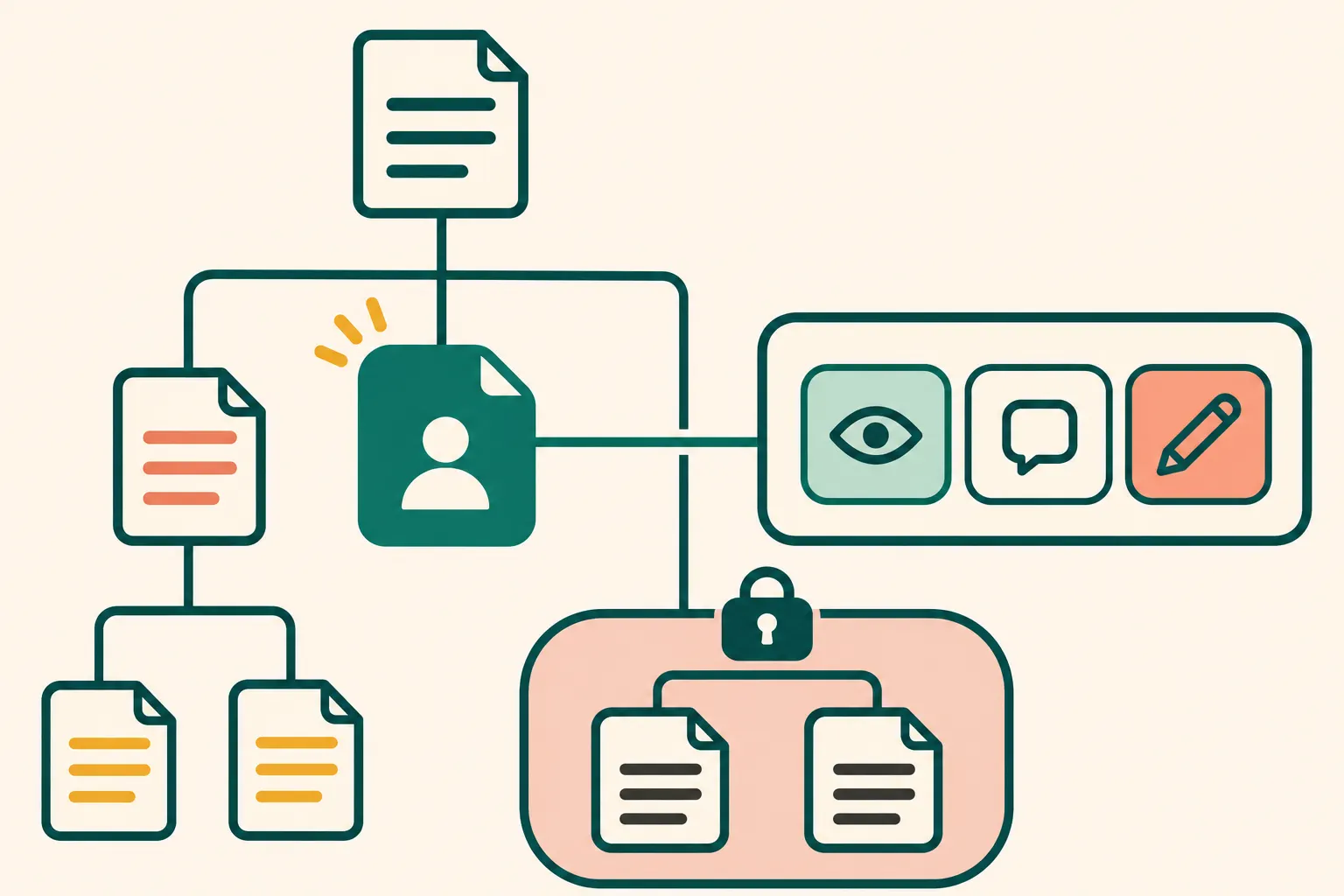
If the client cannot access the page, do not send repeated links and hope the settings resolve themselves. Ask what they see, verify the permission level, and choose another agreed review route if needed. For personal or confidential details, use the client’s approved storage and access process rather than a public page.
What Actually Keeps Approvals Findable?
Approvals stay easy to find when the post, version, client decision, and next action are linked in one record. Add that record to the routine you already use, whether it lives in a calendar or a client workspace.
Name every item. Use a stable number or short title in the calendar, message, and feedback record. Do not depend on “the second one” after the order changes.
Ask for one decision at a time. Say whether the client should approve, request a change, or answer a question. Avoid bundling the content review with unrelated planning questions.
Record the version. Make it clear which caption and creative the client saw. If you revise a material detail after approval, ask them to review the changed version again.
Separate feedback from approval. A comment explains what to change; approval says a specific version is cleared to move forward. “Looks good, but…” includes both a positive reaction and a change request.
Show the next step. After approval, say whether the post is waiting to be scheduled, is scheduled, or has been published. Those are separate production states. Approval alone does not prove that a post went live.
If you want these pieces organized in a ready-made client workspace, Notion SMM Portal includes content production and master content pages, platform writing templates, and statuses from Idea to Published. Its client actions include Mark as approved and Need revision. You still set the review rules, share the pages with the right access, and handle scheduling or publishing in your own process.
How Does Notion SMM Portal Fit This Workflow?
Notion SMM Portal is a Notion template for social media managers who want client onboarding, content work, resources, and reporting organized in a client-facing structure. The contents include a Content Production page, Master Content, platform writing templates, an Analytics page with monthly report and audit templates, and other client-management pages.
For approvals, use the relevant content pages and statuses to keep the post and decision visible. Agree with each client which page they should use, who can approve, what counts as a revision, and how you will share access. Check the live Notion permissions in your own workspace before inviting a client. The template organizes the work, while client access depends on the permissions available in your Notion workspace.
If that structure matches the way you manage clients, see Notion SMM Portal. You can also use this social media content approval process to define the statuses and decisions around each post, and this guide to get clearer client feedback on social media posts to make revision notes easier to act on.
Why Trust This Article?
This article is from the Cosmo Suite team, which built Notion SMM Portal. Product details are limited to its documented contents. The sharing guidance is based on Notion’s official help pages, checked on 7 November 2026. The workflow examples are practical recommendations, not claims about guaranteed response times or results. Read the editorial policy or contact the team to report a factual error.
Frequently asked questions
How do I get a client to stop sending content feedback in WhatsApp?
Agree on one place for reviewing each post, explain what belongs there, and send the client a direct link with a specific decision to make. Keep WhatsApp available for reminders or quick coordination while the approval record stays with the post.
Should I stop using WhatsApp with social media clients?
You can keep it for quick questions if it works for both of you. Put post versions, actionable feedback, and approval decisions in one agreed record so both of you can find them later.
What should a client content approval record include?
Include a unique post name or number, platform, planned date, current version, the feedback or question, the decision needed, the review date, and who acts next. Keep the approval attached to the exact version being reviewed.
How do I handle a client who only wants to use WhatsApp?
Start with one post rather than changing the whole process. Send the review link in WhatsApp, ask the client to put the decision and any specific edit beside the post, then confirm the recorded outcome in the chat.
Can I share a Notion approval page with a client who does not use Notion?
Notion says an invited guest needs a Notion account. A page shared with anyone on the web can be viewed by people who are not Notion users, but comments or edits require login. Check workspace settings and page permissions before sharing.
Does moving approvals out of WhatsApp publish the posts automatically?
No. A review record helps you track feedback and a client's decision. Scheduling and publishing are separate steps unless your chosen publishing tool handles them.
Sources
Keep reading

Approvals
How to Get Clear Client Feedback on Social Media Posts
how to get clear client feedback on social media posts: number each asset, pinpoint the note, and record the decision beside its version.
· 10 min read

Approvals
How to Handle Scope Creep as a Social Media Manager (Without the Awkward Talk)
Social media scope creep: a three-line reply, three ways to answer an extra ask, and one page per client where the decision stays visible.
· 9 min read

Approvals
Client Approval for Social Media Replies: A Simple Workflow
Client approval for social media replies: sort routine comments, questions, and sensitive issues into clear review paths before a response goes out.
· 9 min read
