How to Collect Social Media Account Access from a New Client
How to collect social media account access from a new client: use platform invites, confirm the right assets, and record what each role can do.
By Notion SMM Portal by Cosmo Suite · Editorial policy
Published · 8 min read

Collecting social media account access from a new client works best as a small, platform-by-platform checklist. Ask for an invite to the exact Page, profile, or ad asset you will use, then confirm the role and test the access before work begins.
Do not ask clients to send passwords in a chat or onboarding form. The platform’s own invite flow ties access to a person or business and gives the owner a place to review it. Your job is to make that request specific enough that the client can approve it without guessing.
Key takeaways
- List the specific platform account and task before requesting access.
- Have the client invite your own profile or business through the platform.
- Check the asset, role, and invite status before starting that work.
If you are setting up the rest of the relationship at the same time, keep account details beside your social media client onboarding checklist and the social media client portal. Those records show what is ready without turning a password into an onboarding artifact.
A request is easier to approve when it separates the client’s decision from your work. You name the channel and task. The client selects the role in the account they control. You confirm the invite and report any missing permission with the asset name attached.
The access request is a list of decisions
Social media account access is the platform invite and role assignment that lets you work on a named account. For each platform, record the account name, the work you will do, the access role needed, who can invite you, and whether the invite is accepted. This separates the client’s approval from the technical task of sending an invite.
| Platform | Owner sends | You confirm |
|---|---|---|
| Meta | A people or partner invitation with the right Page, Instagram account, or ad account selected | Correct business portfolio, assets, and task permissions |
| TikTok | A Business Center invitation or asset assignment | Correct TikTok account and whether access includes publishing or ads only |
| A Page role assigned to your personal profile | Correct Page and role for the work | |
| A Business Manager partner invitation or requested account access | Correct business, profile or ad account, and permission level |
These are separate platform systems. A role on one network does not grant access to another, and a person invited to a business space may still need an asset assigned. Keep the request in a checklist so no one treats an invite email as proof that every required account is ready.

Before asking, map the work to an account
Start with the channels and tasks the client agreed to include. For each one, write the exact asset and action. “Manage Instagram” is vague. “Schedule approved posts on the client’s Instagram profile” says what the work is and gives the owner a better basis for choosing permissions.
Separate publishing from advertising. A person preparing organic posts may need a different role from someone creating ads or viewing campaign results. If you need reporting access, say that. If you do not need to change billing or account ownership, say that too.
Write one row for every account, even when one client business owns several channels. The account names may look similar, and separate rows make it easier to see whether each invite went to the correct profile. Put an owner next to every row so you know who can act when an invite is still pending.
Use a table in your onboarding record:
| Channel and asset | Task | Requested role | Owner or inviter | Status |
|---|---|---|---|---|
| Instagram profile | Schedule approved posts | Publishing access available in the platform | Client portfolio admin | Not sent |
| TikTok account | Prepare and publish approved videos | Profile publishing permission | Client Business Center admin | Pending |
| LinkedIn Page | Publish approved updates | Page role that allows publishing | Page super admin | Accepted |
Treat the example roles as prompts, not promises that every platform uses those exact names. Ask the owner to choose from the current role descriptions in their account.
Turn the access list into a permission brief: one asset, one task, one role, one inviter, and one status per row. The client can check that brief before sending invitations, and you can use the same rows to confirm each account before work starts.
Here is how the list works in a small example. A client asks you to prepare Instagram posts, publish updates to a LinkedIn Page, and report on a TikTok account. Create three rows, one for each account, and state the action in each. The client can then send separate invites to the identity you gave them. If the TikTok role they select only allows analytics, mark that row as unable to publish and ask whether the client wants to change the scope or select another available role. The plan remains visible while the permission decision stays with the client.
Invite through each platform’s own controls
The client or an authorized admin should send the invite. They should select the correct business and asset, choose the narrowest available permissions for the agreed task, and send the invite to the profile or business identity you will use. You accept it from that identity and confirm that the right asset appears.
Before the client opens the settings, send a small list of what you need. Include the platform, account handle or Page name, the task, your invitee identity, and the date you hope to begin. Avoid making the client infer which of several similar accounts belongs in scope.
For Meta, the Help Center guide to adding people and assigning business assets covers assets such as a Page, Instagram account, or ad account. A person joining the portfolio is not the same as having every asset assigned. Ask the client to check both steps in the current Business Suite settings.
TikTok Business Center distinguishes Admin and Standard members, then allows an admin to assign accounts and asset permissions. Its member invite instructions explain that access can be limited to assigned accounts and assets. TikTok account settings also distinguish permission to publish on the profile from ads-only access. The client should match this choice to your approved scope, not pick the broadest option for convenience.
The platform’s account and asset permission guide lists actions that can vary by asset type. Read the role descriptions for the account in question before you ask for a specific level.
LinkedIn Page access is assigned to personal profiles. LinkedIn says Pages do not have separate login credentials, and a Page super admin assigns roles to other members. Its Page access overview describes how admins connect to personal profiles. Use your own profile and ask the client’s super admin to select a role that fits the work.
Pinterest Business Manager supports partner invites and account access requests. An agency or external partner may need the client’s Business Manager ID and, for ad accounts, the relevant account ID. Pinterest’s partner access instructions show where to request or accept access. The client can then review the requested access in that platform.

Check the invitation before the first task
An invite is not the end of the setup. Confirm four details before you schedule or publish anything: the invite was accepted from the expected identity; the account name matches the client’s asset; the role includes the agreed task; and the client has not accidentally assigned a different Page or profile with a similar name.
If something is missing, stop at the missing permission and send the owner a precise correction. For example: “I can see the Facebook Page, but the Instagram profile is not listed. Could you assign the Instagram asset to the same invite?” This is easier to resolve than a general “access is broken” message.
Keep the record current when the scope changes. If a new channel is added, request that account separately. If work ends, ask the owner to remove or adjust the access through the platform. An old spreadsheet should not be the final record of who can still reach an account.

A short client message you can reuse
Send a request that names the task and asks the client to use an invite rather than share credentials:
For the channels in our agreed scope, please invite [name or business identity] through each platform’s access settings. Please assign only the assets and permissions needed for [specific tasks]. I’ll confirm each invite and account before I begin. Please do not send passwords by email or chat.
Then list the platforms, account names, and status in your onboarding checklist. A single clear request reduces back-and-forth, while the platform remains the place where the owner chooses and changes access.
For the rest of the kickoff, pair the access list with a social media client onboarding checklist and keep channel ownership beside the social media client portal. Those records help you see what is ready without turning a password into an onboarding artifact.
You can also organize the account list and onboarding notes in a ready-made social media client portal. Keep the invite itself in the platform where the account owner can review and change permissions.
What to do when access stalls
If the client cannot invite you, identify the account owner and ask an existing admin to send the invite. If the invite went to the wrong identity, have the owner cancel or resend it to the correct one. If the role does not cover the task, name the missing action and ask the owner to adjust that permission.
Do not ask the client to make you an owner just to bypass a missing role. Do not move the account into a different business to solve a routine invite issue. Those changes can affect ownership and other people’s access, so the account owner should decide whether they are needed.
Why Trust This Article
This guide is from the Notion SMM Portal team at Cosmo Suite. We checked the linked platform instructions on October 31, 2026. Platform menus and role names can change, and access choices depend on the client’s account setup. Confirm the current options with the account owner before an invite is sent. Read the site’s about page and editorial policy for the publisher and content standards.
Where Notion SMM Portal Fits
Notion SMM Portal includes client onboarding and content production pages for keeping project details together. You can use its social media manager onboarding template to organize channels, tasks, and onboarding notes. Account permissions still come from Meta, TikTok, LinkedIn, Pinterest, or the relevant platform itself.
Frequently asked questions
Should a client send a social media password to their manager?
No. Ask the client to invite you through the platform’s own access controls. A password can give broader access than the task requires and is hard to revoke for just one person.
What access should a social media manager request?
It depends on the work. List the exact account, tasks, and actions you need, then ask the owner to choose the closest role the platform offers. Do not request billing or admin access by default.
How do I get access to a client’s Instagram account?
Ask the client to add you through Meta Business Suite or the account’s current business settings, then assign the relevant Instagram asset and permissions. The labels can change, so follow the current instructions shown in their account.
Can I manage accounts on several platforms from one invitation?
Usually not. Each platform has its own roles and invitations. Keep a separate record for each platform, account, inviter, role, and acceptance status.
What if the client cannot find the invite?
First confirm which email or profile they invited and which business owns the account. Then ask them to check pending invitations and resend from the platform. Do not switch to a password as a shortcut.
When should I request account access during onboarding?
Request it after the client confirms which channels are in scope and who owns them. This gives the client a clear list to approve and helps you avoid asking for access to accounts you will not use.
Sources
Keep reading
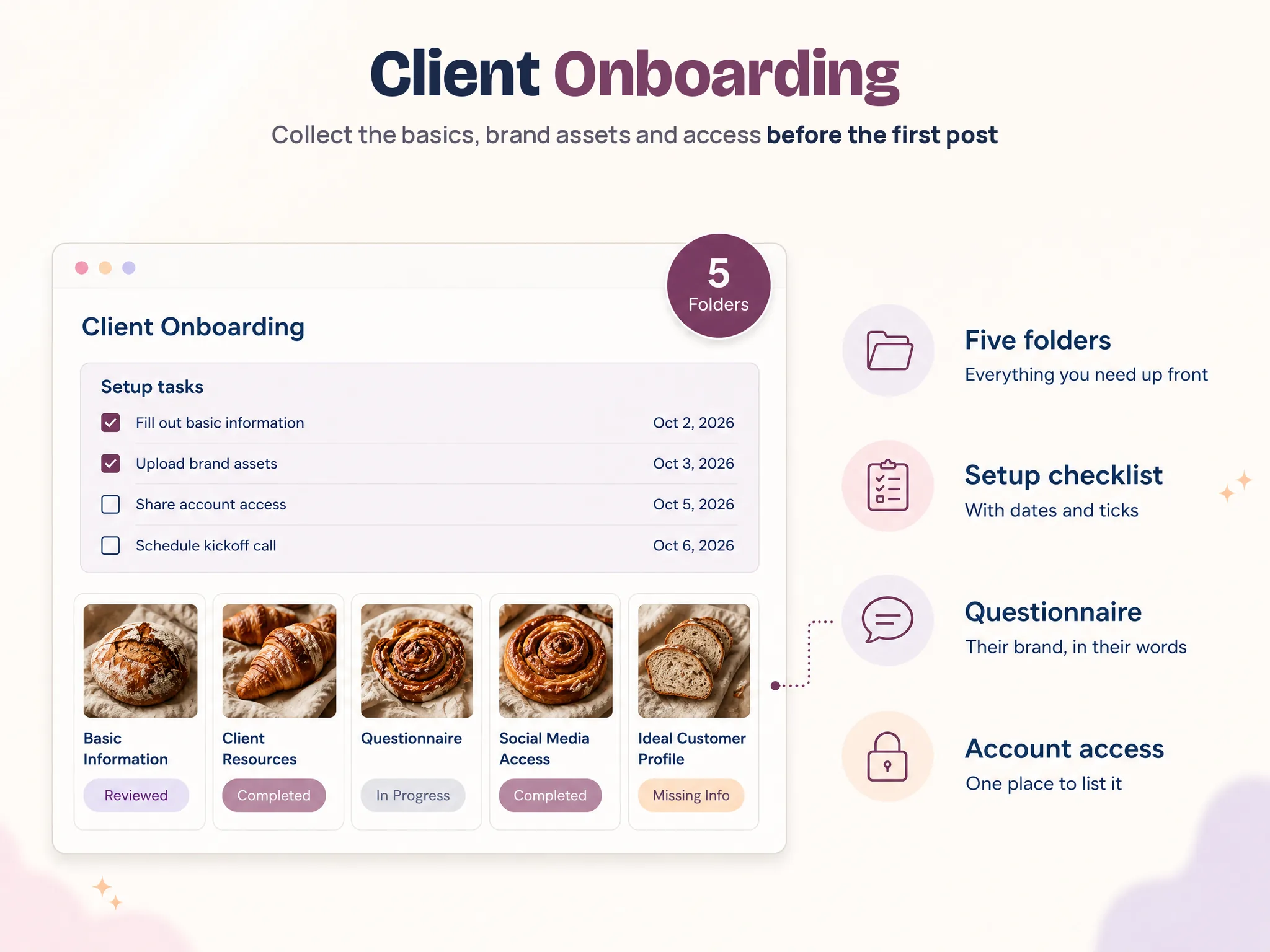
Onboarding
Social Media Manager Client Onboarding Checklist: 3 Phases
A social media manager client onboarding checklist: sort scope, access, and brand inputs, then test one post review before building your first batch.
· 9 min read

Onboarding
How Many Clients Can a Social Media Manager Handle? Work It Out From Your Own Hours
How many clients can a social media manager handle? Time the tasks inside one client's week, subtract fixed overhead, divide, and keep a buffer.
· 9 min read
Onboarding
Social Media Client Onboarding Questionnaire: 25 Questions
Use this social media client onboarding questionnaire to collect goals, audience, brand voice, platforms, approvals, and next steps before drafting.
· 8 min read
