Notion vs Planable for Client Approvals: Which Fits?
Notion vs Planable for client approvals: compare feedback, review, scheduling, access, and price to choose a workflow for each social media client.
By Notion SMM Portal by Cosmo Suite · Editorial policy
Published · 10 min read
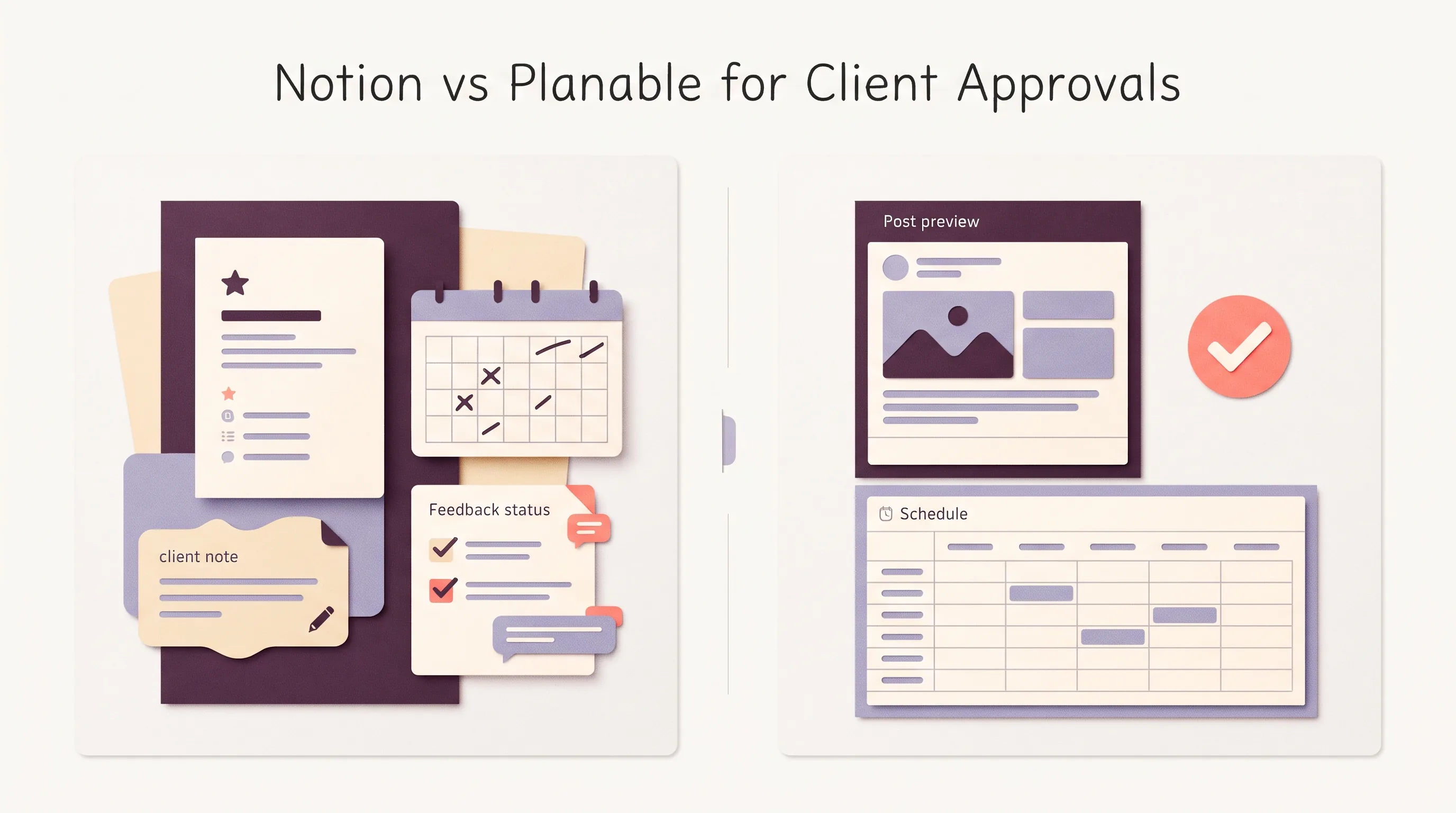
Quick answer: Planable is the better fit when the client must approve social posts in the same tool that prepares and schedules them. Notion fits when approvals sit inside a larger client workspace and you are comfortable managing publishing elsewhere. Choose based on the last step you need: a signed-off draft or a scheduled post.
One campaign can leave a social media manager with the client portal, calendar, scheduler, and message thread open at once. A client writes "can you change the second one?" Which post do they mean? Which version needs approval? This comparison follows that handoff from draft to decision.
This comparison focuses on that decision. It separates client access, feedback, approval controls, publishing, and recurring cost. Prices and plan features below were checked on October 29, 2026. Product details can change, so confirm them before buying.
Start with the approval job you need to finish
Choose a tool by the final action your client must take. If the task ends when they mark a draft approved or request a revision, a shared Notion process may be enough. If approval should control a post's route to scheduling or publishing, Planable has approval settings built for that step.
An approval record should answer four questions: which post is under review, which version the client saw, what they asked to change, and who gave the final approval. Cosmo Suite's October audience brief found scattered or vague feedback among the most common themes in its coded community comments. Most comments came from Reddit, so the brief treats this as a directional sample, not a measure of all social media managers. It gives the comparison a practical test: can the client attach a clear decision to the exact post they reviewed? A calendar may show the date and status while the version and decision stay in comments or email.
Write down the process before comparing plans. For one client, you might collect edits in a shared page, change the status to Ready for review, and ask for a clear yes. Another client may expect to preview each platform post, leave comments on the caption, and approve it before it enters a publishing queue. Those are different jobs.
The social media client approval process guide covers a simple status flow. Here, the question is which tool should hold that flow. A client portal for social media managers can hold the surrounding work as well, such as onboarding, resources, and reporting.
Notion vs Planable for client approvals at a glance
Client approval is the reviewer’s recorded decision on a draft. A publishing gate is the rule that keeps a post from being scheduled or published until that decision is made. Notion gives you flexible pages and sharing controls. Planable provides a social publishing workspace with review features that vary by plan. The table compares the parts that affect a client approval decision.
| Decision | Notion workspace or portal | Planable | Best fit |
|---|---|---|---|
| Best use | Client information, resources, plans, and manually tracked review | Social content planning, feedback, approval, and scheduling | Choose by the work after review |
| Approval record | A page or database status; SMM Portal includes Mark as approved and Need revision buttons | Approval status and permissions; required approval is on Pro and Enterprise | Planable for a publishing gate |
| Post preview and schedule | Store copy, date, links, and assets in a page; scheduling is outside the listed portal contents | Calendar and feed views, with connected publishing features | Planable when publishing is part of the workflow |
| Client access | Invite a guest or set a web link; access level matters | Invite clients to the workspace, or use a public view link with limits | Test the actual access path |
| Starting cost | Notion plan depends on the workspace; guest and sharing limits apply | Free up to 50 created posts, then Basic or Pro pricing | Planable when a capped trial suits the volume |
Planable's pricing help page lists Basic at $39 per workspace monthly or $390 yearly, and Pro at $59 monthly or $590 yearly. Basic allows 60 posts per workspace each month; Pro allows 150. Required approvals are listed for Pro and Enterprise. Its free plan allows 50 total created posts and does not reset. Planable's current pricing details are the source for those numbers. The same page lists 4 social pages per Basic workspace and 10 per Pro workspace. For annual billing, that works out to $32.50 per month for Basic and about $49.17 per month for Pro, paid as $390 or $590 per year.
A Notion setup has no single comparable approval-tool price. Your cost depends on the workspace plan, how you share pages, and whether collaborators are guests or members. Notion's sharing and permissions guide says guests need their own account, while anyone with a web link can view without being a Notion user. Visitors need to log in to comment or edit.

Where Notion works well for client approvals
Notion is a good fit when the approval is one step in a client relationship that already lives in a workspace. A social media manager can keep an onboarding page, strategy, content calendar, resource library, meeting notes, and reports together, then give the client a clear place to review work.
A Notion page can hold a post title, caption draft, platform, planned date, creative link, and review status. Your team decides the labels and fields. That flexibility helps when one client needs a light monthly calendar and another needs a longer content plan with campaign notes.
The tradeoff is that a page is a process you design and maintain. A status called Approved records a decision, but it does not by itself prove that the client saw the final caption or that a social platform will publish it. Keep the approved version, revision request, and next owner visible on the same record. Add a date for the next action so no one has to search a message thread.
Access needs a deliberate check. Notion lets you invite someone as a guest and set page permissions. A guest needs a Notion account. A link with general access set to Anyone on the web can be opened by someone who is not a Notion user, but visitors need to log in to comment or edit. Notion's share your pages help page lists the steps for choosing web access and its permission level. A view-only link is useful for reading; it does not capture an in-page approval.
Before sharing, test the exact page as the client will see it. Check nested pages, linked databases, and any material from other clients. A filtered view is not an access boundary by itself. The Notion content calendar sharing guide explains the permission checks for a client-facing calendar.
Where Planable has the advantage
Planable fits when the approval belongs inside social media production. Its approval workflow guide describes feed and calendar views, comments and text annotations, approval states, and scheduling. On paid tiers, teams can set required approval so a post cannot move to schedule or publish until an approver signs off. The Planable client-approval help page also explains that a public link supports viewing and comments, while actual approval requires an account with approval permission.
The plan limit matters. Planable's feature comparison lists optional approvals on Basic and Pro. Required approval is listed on Pro and Enterprise. Multi-level approval is Enterprise only.
| Planable plan | Approval options listed by Planable | Monthly post limit |
|---|---|---|
| Basic | None or optional | 60 per workspace |
| Pro | None, optional, or required | 150 per workspace |
| Enterprise | Includes multi-level approval | Unlimited |
If your process needs an internal review followed by a client decision, check whether the Enterprise setup fits your budget and team structure before you promise that workflow.
Client access also needs a closer look. Planable's help guide explains that a public approval-view link lets clients view and comment without logging in, but does not allow approval actions. To approve posts, clients need an account with the appropriate permission. A no-login link can gather feedback, but it does not complete the approval step.
A scheduling workflow can reduce duplicate handling when the same post moves from draft to client review to calendar. It also creates more settings to understand: who can approve, whether approval is required, whether a post is locked afterward, and whether approval can trigger scheduling. Decide who owns each setting. Do not treat a green status or a public link as a final sign-off unless the actual workflow records it.
Compare the handoffs, not only the feature lists
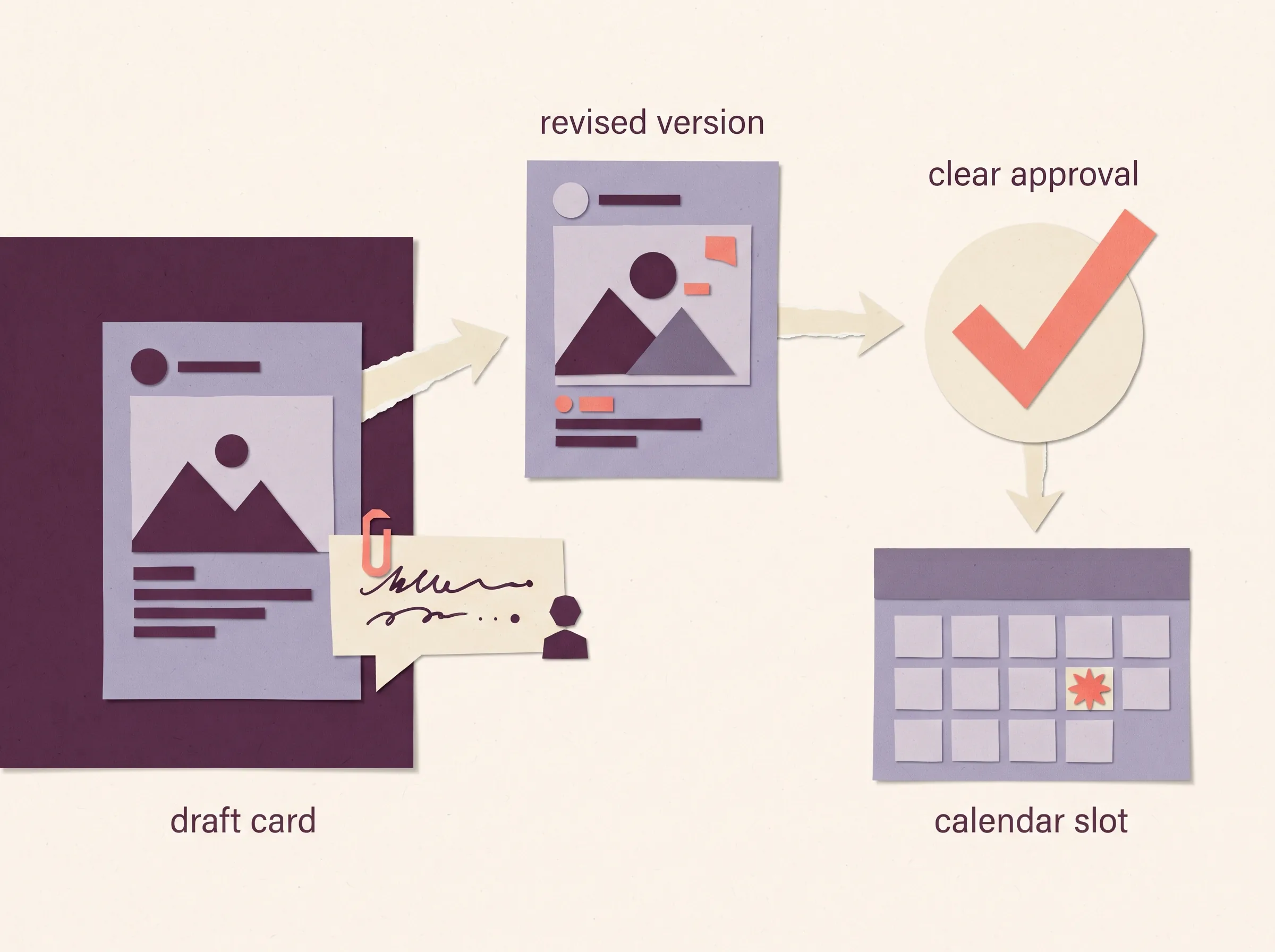
Run one post with a revision through each tool. Start with the draft and follow it through client review until the next person can act. Note every time someone copies a caption, changes an access setting, or sends a separate message to explain the status.
| Handoff | Question to test | What a clear result looks like |
|---|---|---|
| Draft to client | Can the client identify the right asset and version? | One post record, named clearly, with the copy and creative together |
| Feedback to revision | Can the client point to the exact change? | A comment or requested revision attached to that post |
| Revision to approval | Can your team tell what was approved? | The final copy is visible with a named decision and date |
| Approval to publishing | Does the approval change the next step? | The scheduled owner and publishing state are clear |
Run the same test in each candidate tool. In Notion, make a sample page with the status, content, and review instructions your client needs. In Planable, use the approval mode and permissions available on the plan you are evaluating. Ask a client who represents your usual audience to complete the review, then check whether your team can tell what happens next without asking them to repeat it.
A client who only reviews a few pieces may prefer a simple link and a short set of instructions. A client team that approves a steady stream of posts may benefit from a dedicated approval queue. Avoid choosing based on an ideal workflow that your actual clients will not use. The fewer handoffs your team has to interpret, the less likely an old draft is mistaken for the approved one.
When to use one tool or combine them
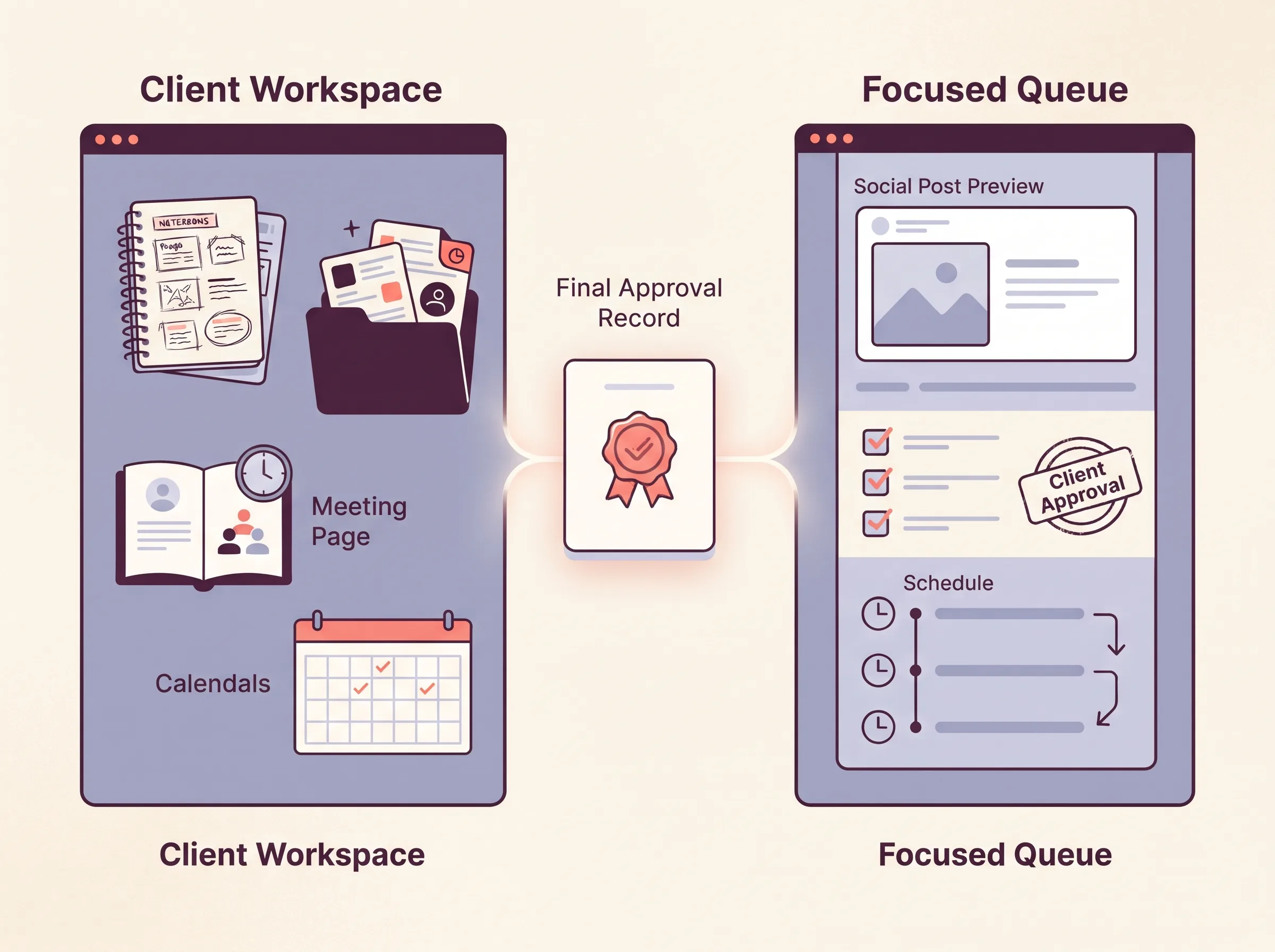
Use Notion alone when it is already the place for client context and the approval is a manual checkpoint. Keep the record simple: the post, the version, the reviewer, the decision, and the next step. Make the access setting match the work. If the client needs to comment, confirm that the sharing method supports it.
Use Planable when your day-to-day work depends on social previews, a shared content calendar, and approval controls connected to scheduling. Price the number of workspaces and monthly posts you expect. If required approvals are essential, include the Pro or Enterprise tier in your comparison rather than judging by the free plan alone.
Both tools can fit one client workflow. Notion can hold onboarding, strategy, resources, meetings, and monthly reporting. Planable can handle post review and scheduling. That split only helps if everyone knows which tool contains the final approval. Add one source-of-truth rule to your process, such as: the approved caption and status in Planable control publishing; the Notion page links to that record.
Why trust this comparison
We used Planable's pricing and approval documentation and Notion's help pages for sharing behavior. Claims about Notion SMM Portal come from its contents list. Cosmo Suite makes the portal, so this article describes its limits as well as its fit. We did not test either service with a client account. See our About Us page and editorial policy for how we prepare and update articles.
Use Notion SMM Portal when the client relationship needs a home
If your client work includes onboarding, content planning, resources, meetings, and monthly reports, Notion SMM Portal is a ready-made Notion portal for those parts of the process. Its contents include Client Onboarding, Content Production, Master Content, Strategy, Resources, Analytics, Task, Meeting, Payment, Contract, and Closing Chapter pages, plus a monthly report and audit template.
For content review, the portal includes statuses from Idea to Published and client buttons for Mark as approved and Need revision. It also has platform writing templates for Instagram, TikTok, Facebook, YouTube, Pinterest, Twitter, and newsletters. The product is a Notion template: its contents do not include a social publishing connection or a Planable-style scheduler. Keep a separate scheduler if your client workflow needs one.
Choose a Notion social media client portal if one client-facing space would help you keep planning and communication together. Choose a dedicated scheduler when approval must control publishing. If both jobs matter, map the handoff before you invite clients, then make clear where their final decision is recorded.
Frequently asked questions
Is Notion or Planable better for client approvals?
Planable fits when clients review social posts in a publishing workflow. Notion fits when approval sits inside a broader client portal and scheduling happens elsewhere.
Can clients approve social posts in Notion?
A Notion page can show a status and collect feedback through its sharing permissions. The SMM Portal contents list includes Mark as approved and Need revision buttons. It does not list a social publishing connection or scheduler.
Does Planable have a free plan?
Planable's pricing help page, checked October 29, 2026, says the free plan includes up to 50 created posts total. Deleting posts does not reset the limit.
Which Planable plan includes required approvals?
Planable's September 2026 feature comparison lists required approval on Pro and Enterprise. Basic includes optional approval. Check current plan details before purchasing.
Can a client comment on a Notion page without an account?
Notion says anyone with a link can view a page without being a Notion user. Visitors must log in to comment or edit.
Can Planable clients review posts without a login?
Planable's help guide says a public link lets clients view and comment without logging in, but does not let them approve. Approval actions require a Planable account with the right permissions.
Can I use Notion and Planable together?
Yes. Keep client onboarding, resources, meetings, and reporting in Notion, then send content into Planable when the team needs platform previews, approval, or scheduling. Decide which tool records the final approval.
Sources
Keep reading

Approvals
How to Handle Scope Creep as a Social Media Manager (Without the Awkward Talk)
Social media scope creep: a three-line reply, three ways to answer an extra ask, and one page per client where the decision stays visible.
· 9 min read

Approvals
Client Approval for Social Media Replies: A Simple Workflow
Client approval for social media replies: sort routine comments, questions, and sensitive issues into clear review paths before a response goes out.
· 9 min read

Approvals
Get Clients Out of WhatsApp for Content Approvals
Get clients out of WhatsApp for content approvals by giving each post one review link, a clear decision, and a clear next step.
· 8 min read
